Getting started
Finding your way
One search box, one inbox and a handful of shortcuts work the same way in every product.
The top bar
The bar across the top is the same in every product, and follows your light or dark choice.

- spudsuite at the left takes you to your workspace's Home. To switch workspace, use the workspace's name at the top of the sidebar.
- Search SpudSuite searches everything (see below). The coloured pill at its left shows the product you're in.
- Create starts something new from anywhere (see Create).
- Invite asks people to join your workspace. Help opens the help for the screen you're on.
- The bell is your inbox, and your picture opens your account: your profile, Dark mode or Light mode, and Sign out.
On a phone the bar keeps the sidebar button, search, + (Create), ? (Help), the inbox and your account.
Search everything
Choose the search box in the top bar, or press Ctrl K (⌘ K on a Mac). It finds pages by their words, issues by key or title, and people, and it doubles as a command palette:
- Type a few words to find a page or issue, then ↵ to open it.
- Type a command such as "new page", "new project", "invite" or "dark mode".
- Choose Search issues with a query to search every project with a query (see Queries).
- In Agents, type a screen's name ("runs", "triggers") or a workflow's name to jump there.
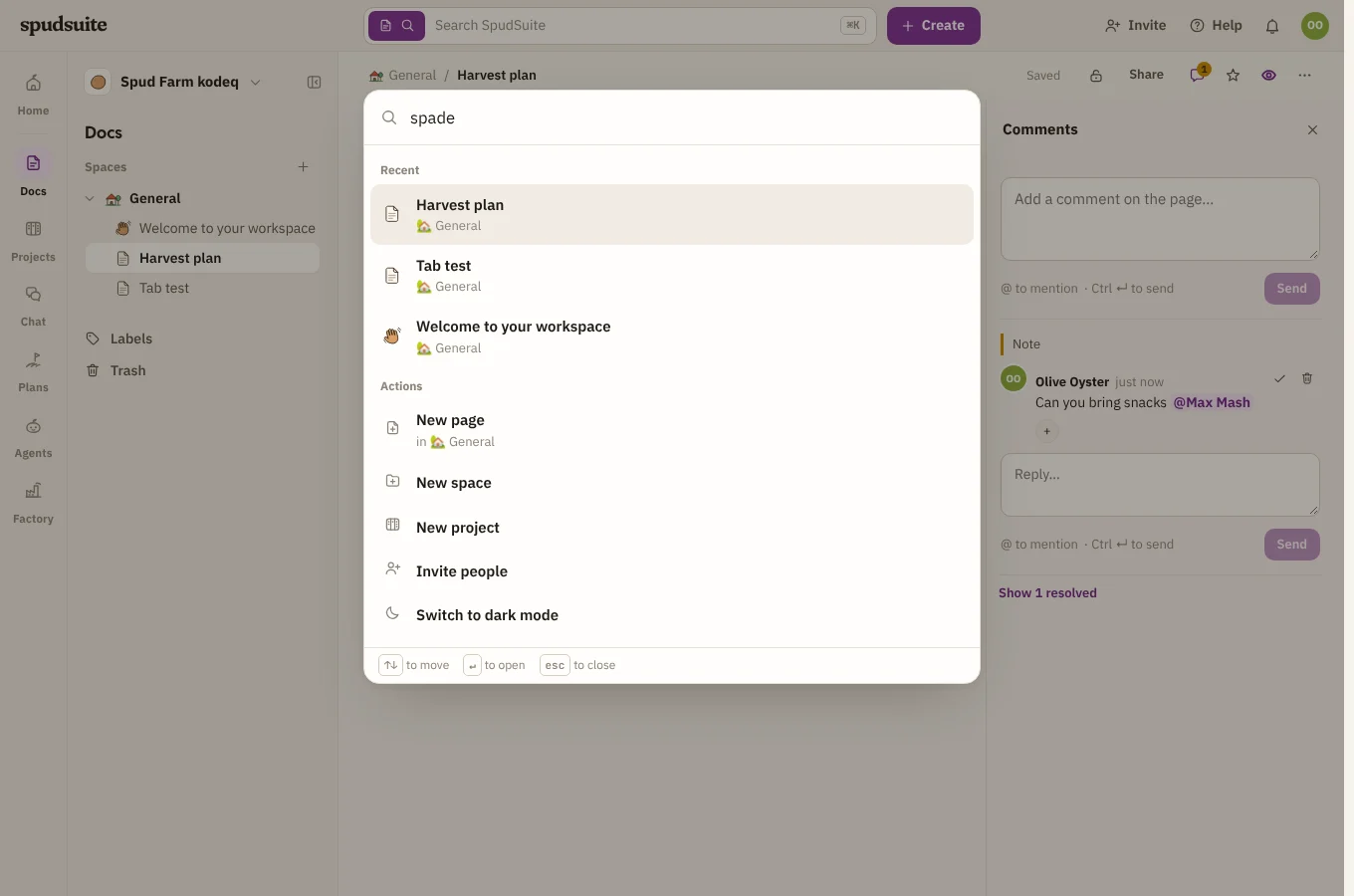
Use ↑ and ↓ to move, ↵ to open and Esc to close.
The inbox
The bell in the top bar is your inbox. It collects what needs you, from every product:
- @mentions in pages, comments, issues and chat;
- comments on pages you wrote or watch, and changes to spaces you watch;
- issues assigned to you, and comments on issues you watch;
- notices from automation rules.
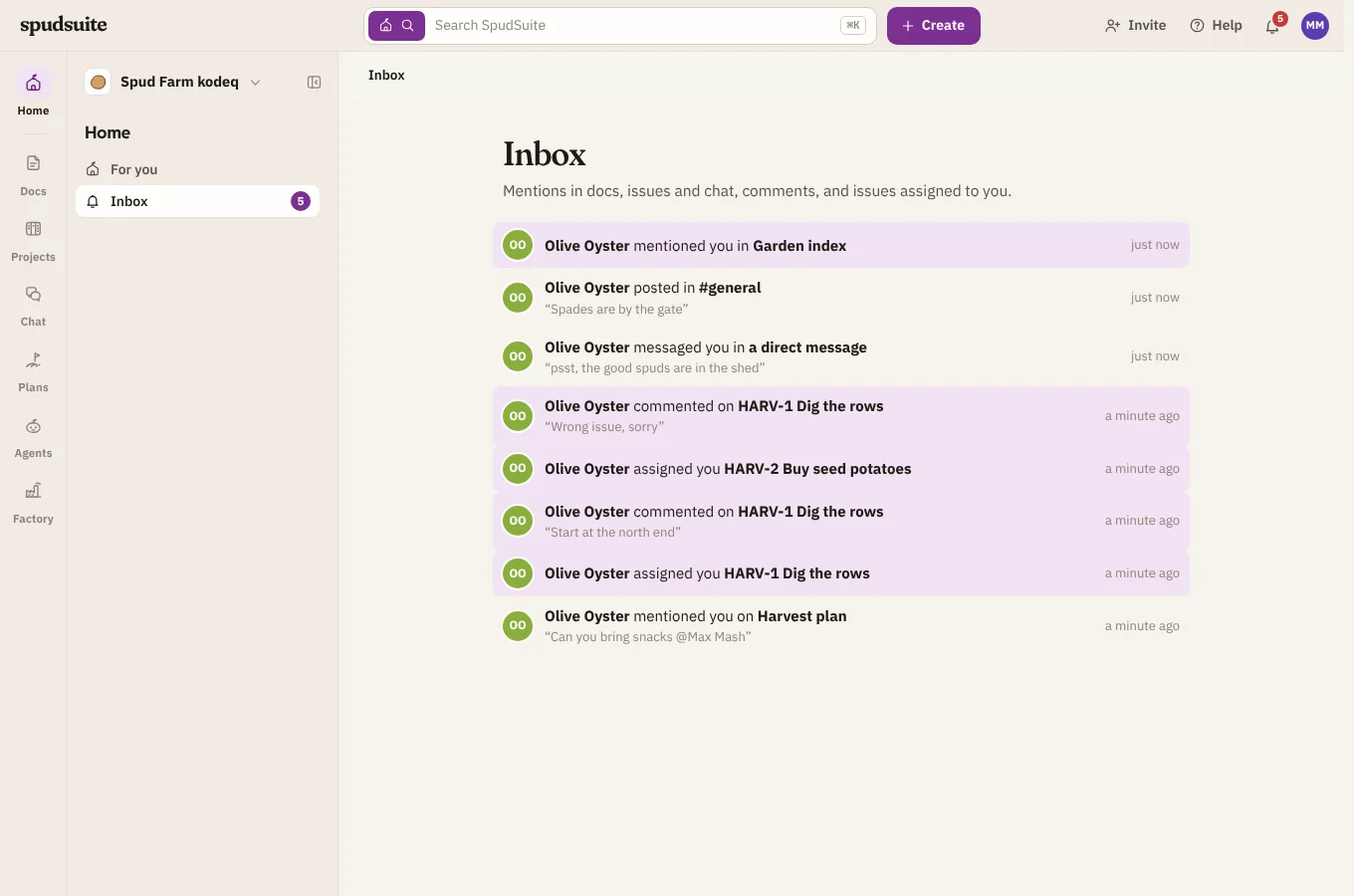
A number on the bell shows how many are unread.
Home
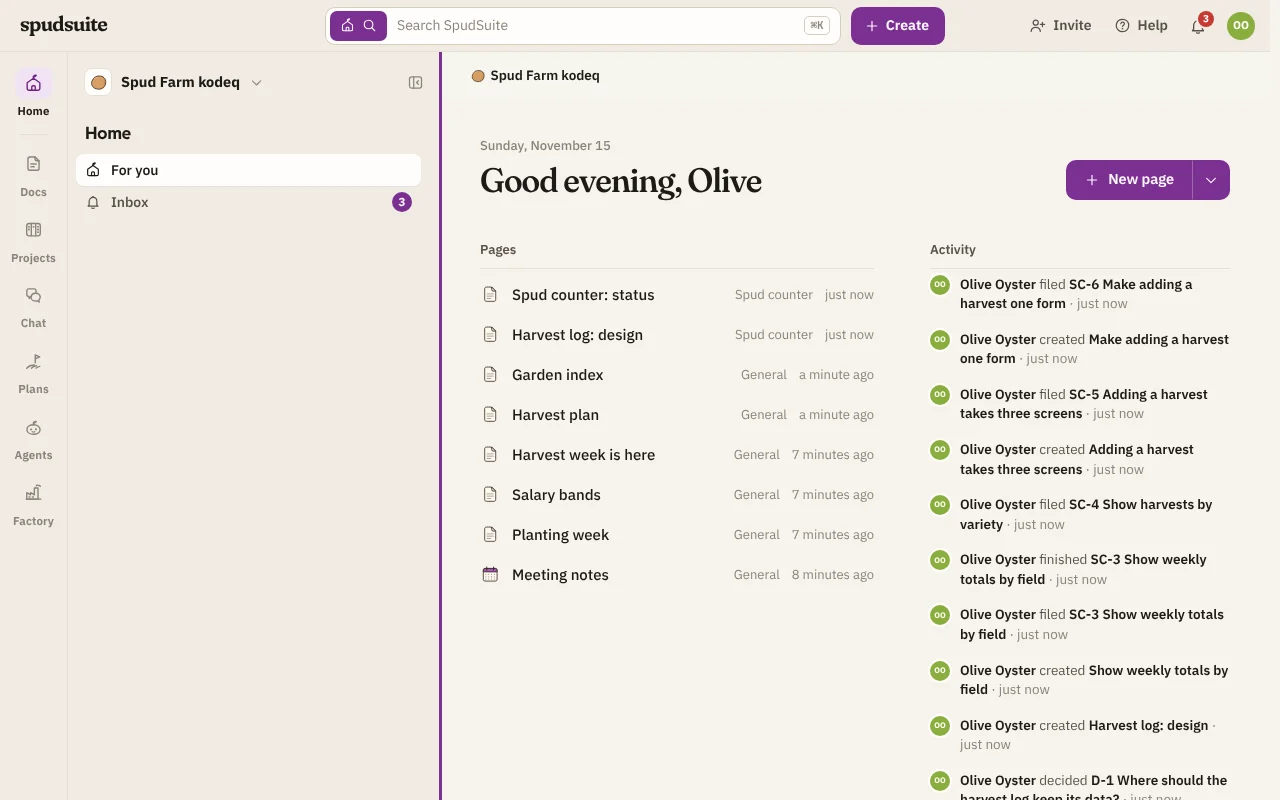
Home at the top of the rail shows what's on your plate (issues assigned to you), recent activity across the workspace (pages, issues, sprints and plans; what Agents did is in its audit log), and the pages you've been in. New page and Start from a template get you writing straight away.
Create
The Create button in the top bar makes a page, an issue, a channel or message, a goal or roadmap in Plans, a project or a space, wherever you are.
Hide the sidebar
Choose the hide button at the top right of the sidebar, next to your workspace's name, or press Ctrl \ (⌘ \ on a Mac). To bring it back, choose Show the sidebar at the bottom of the rail, or press the keys again.
Make the sidebar wider or narrower
Drag the right edge of the sidebar to give it more room, or less. It stays between about 200 and 480 pixels wide, and SpudSuite remembers the width you chose on this browser. Double-click the edge to put it back to its usual width.
From the keyboard, press Tab until the edge is highlighted, then use ← and → (hold Shift for bigger steps), Home and End for the narrowest and widest, or ↵ to reset it. On a phone the sidebar is a menu instead, so it keeps its size.
Keyboard shortcuts
| Keys | What they do |
|---|---|
| Ctrl K | Search and commands |
| Ctrl \ | Show or hide the sidebar |
| / | In a page: the block menu. In a project: filter issues. |
| ? | In a project: list its keyboard shortcuts |
| Ctrl J | In Agents: open the assistant |
On a Mac, use ⌘ wherever this says Ctrl. Projects has more shortcuts of its own: see Boards.
On a phone
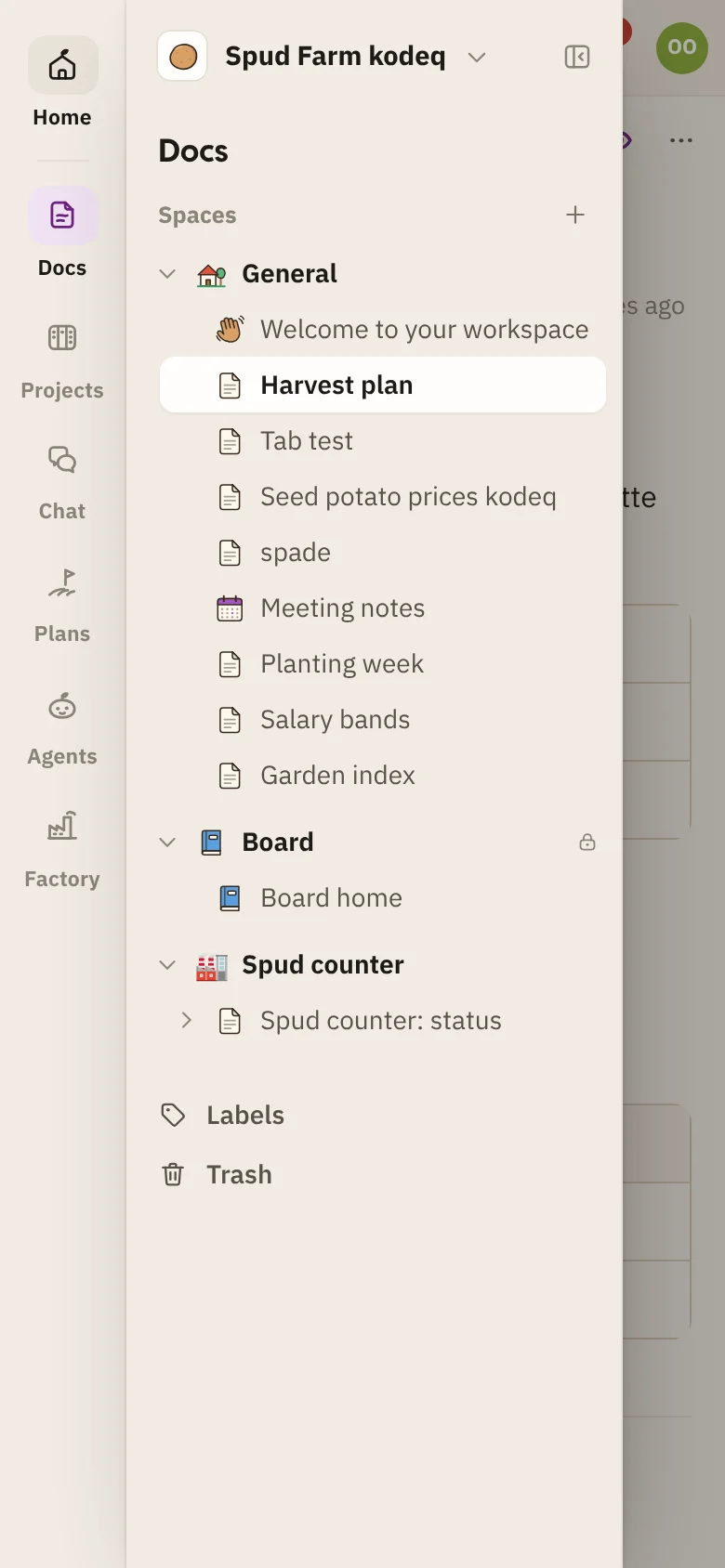
SpudSuite works in your phone's browser. The rail and sidebar fold into a menu: tap the menu button at the top left to open it, and pick where to go.
Less motion
Pages, menus and dialogs fade and slide in briefly as they open, and cards glide to their new places on a board. If you'd rather nothing moved, turn on your device's reduced-motion setting (Reduce motion on a Mac, iPhone or iPad; Show animations off on Windows; Remove animations on Android). SpudSuite follows it and everything appears at once.
Getting help
Choose Help in the top bar to open the help page for the screen you're on. On this help site, press / to search.