Factory
Threads, decisions and steering
Each piece of work in a Factory project happens in a thread: a Claude Code session with its own checklist, working on its own branch of the code (factory/<thread>). The orchestrator starts threads; you follow them, answer their questions and steer them.
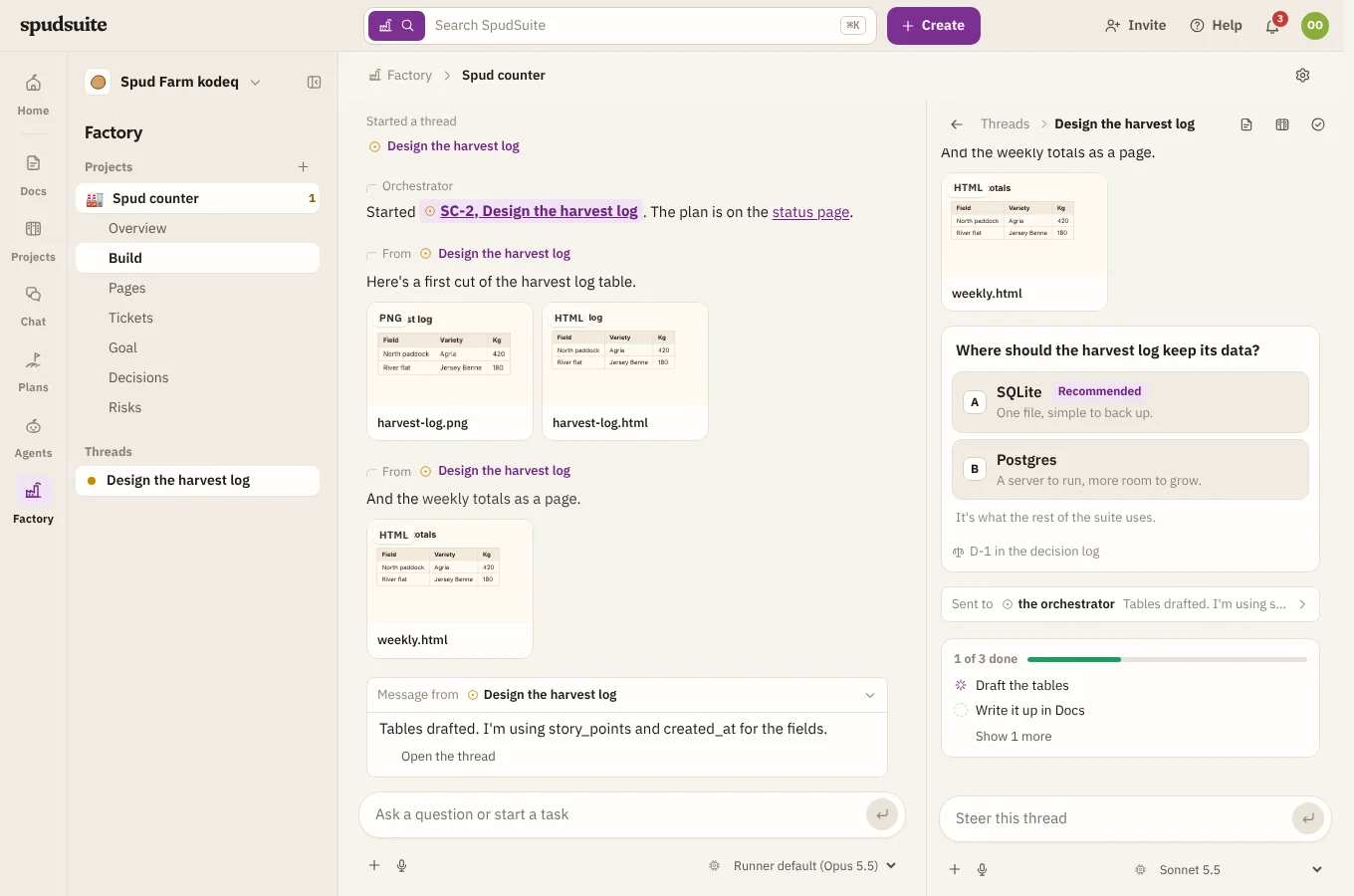
Following threads
Your message shows in the chat as soon as you send it, marked Sending… until it's saved. When you come back to a project, a wavy New line marks where the replies you haven't seen start.
Below the message box are + to attach files, the microphone, and the model it runs on. When a thread has opened a pull request, a link to it sits above the thread's message box. Threads, tickets, the status page and pull requests the orchestrator mentions are links: click a thread's name to open it beside the chat.
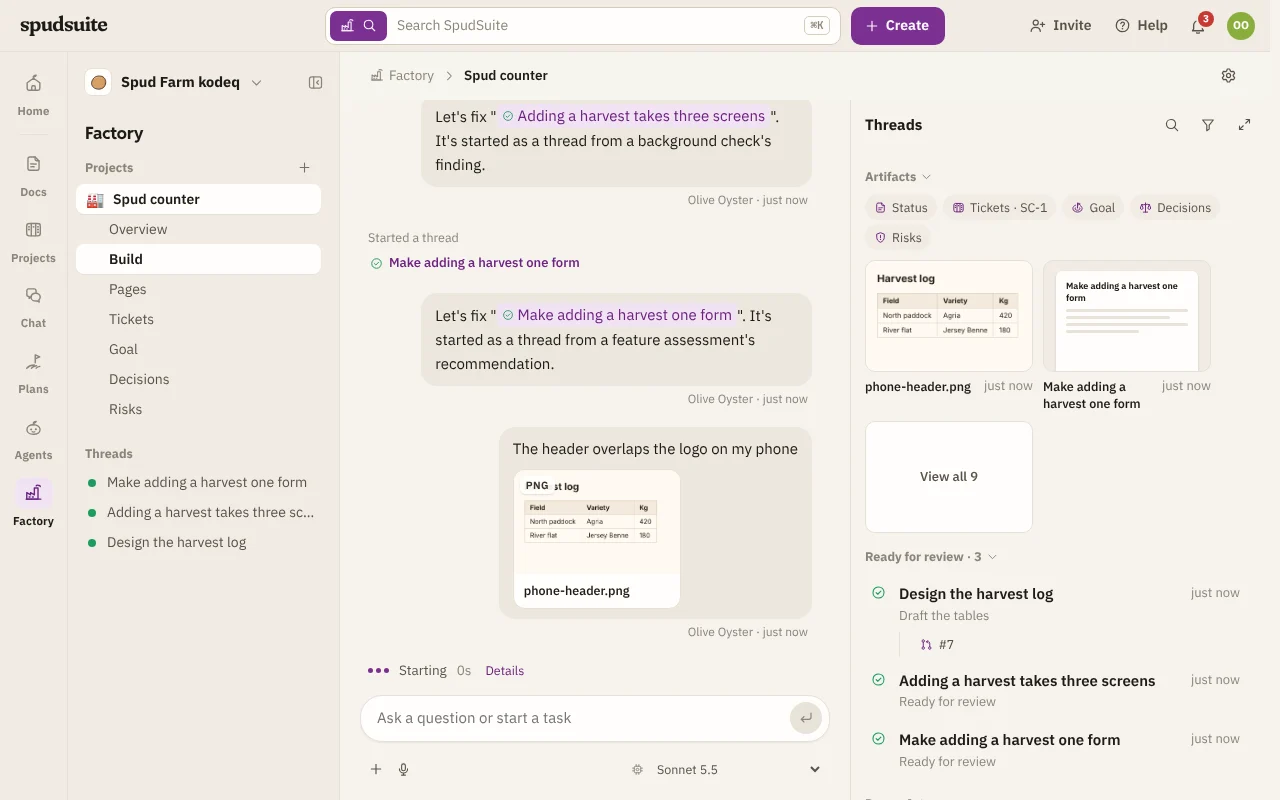
While a thread works, it says what it's doing in plain words, such as Running a command or Editing files. Click Details to see each step.
Writing while it works
You don't have to wait for a thread to finish. Write to it while it works and it reads your message straight away, with the next thing it does, rather than when its turn ends. It decides what your message means for what it's doing:
- If it changes the work, it changes course, and stops a command that no longer makes sense.
- If it's a question, it answers it.
- If it can wait, it says so in a line, such as "Running the tests now; I'll do that next", and carries on.
Threads run long commands, such as builds, test suites and deploys, in the background, so your message can reach them while those run. On the open harness, a command that's still running when your message arrives moves to the background by itself.
Messages from other threads and comments on a thread's page or ticket reach it the same way. If it had just finished when your message arrived, its next turn starts at once and reads it. To end a turn outright, use Stop (the Send button while the message box is empty). Reading messages mid-turn needs runner 0.1.37 or later; older runners read them on the next turn.
Replies are short: the orchestrator and threads lead with what happened, then what's still open and what needs you. They say tests passed rather than listing commands, timings, branches or commit hashes, and put longer write-ups in a doc.
Replies stream in as they arrive: a word at a time at an easy pace, each one fading in. If your device is set to reduce motion, they show at once.
The Threads panel starts with Artifacts: the docs the project's threads wrote for you to read, newest first, such as designs, reports and reviews. Screenshots and mocks stay in the conversation they were shared in, and each thread's own page (its working notes) is under Pages. Click an artifact to open it in the main panel, with the threads still beside it, ready to read and edit. A page shows a spinner until its content is in. Back to the chat returns you, and Open on its own (the arrows beside it) gives the page the whole screen. View all shows the rest. Above them are links to the project's Status page, and its Tickets, Goal, Decisions and Risks screens.
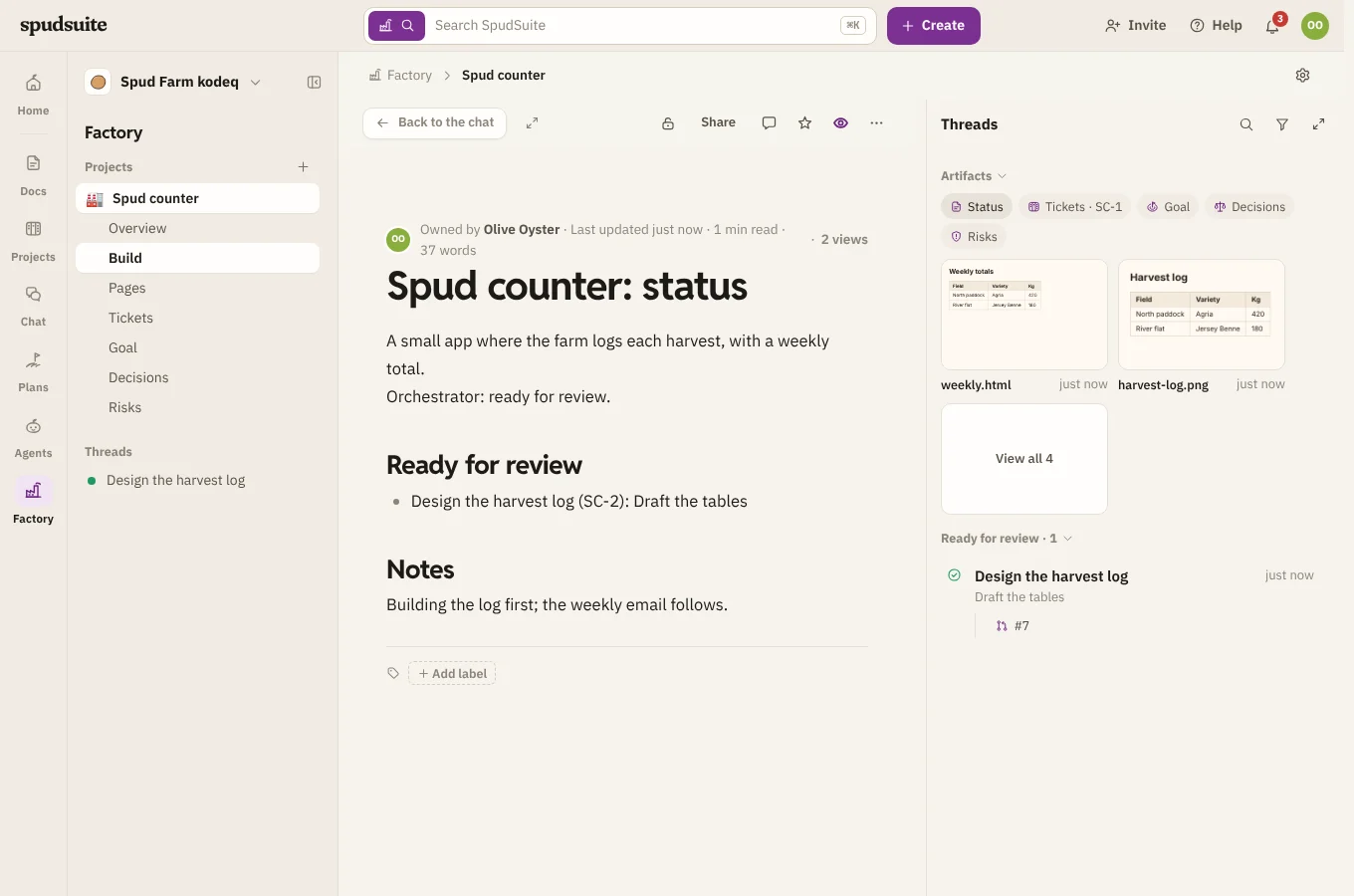
Below that, threads are grouped by where they're at, each group with its count:
- Waiting on you: it has a question. These sit at the top.
- Working: busy on its checklist.
- Ready for review: it thinks it's done and wants a look.
- Done, folded away until you open it.
Each thread shows its title, a line on what it's doing or where it got to, and when it last moved. A dot means it's moved on since you last opened it. The pull requests it opened sit under it, such as #25; click one to open it on GitHub.
The orchestrator isn't in the list: it's the project chat itself. When it has nothing to do, tell it what's next there.
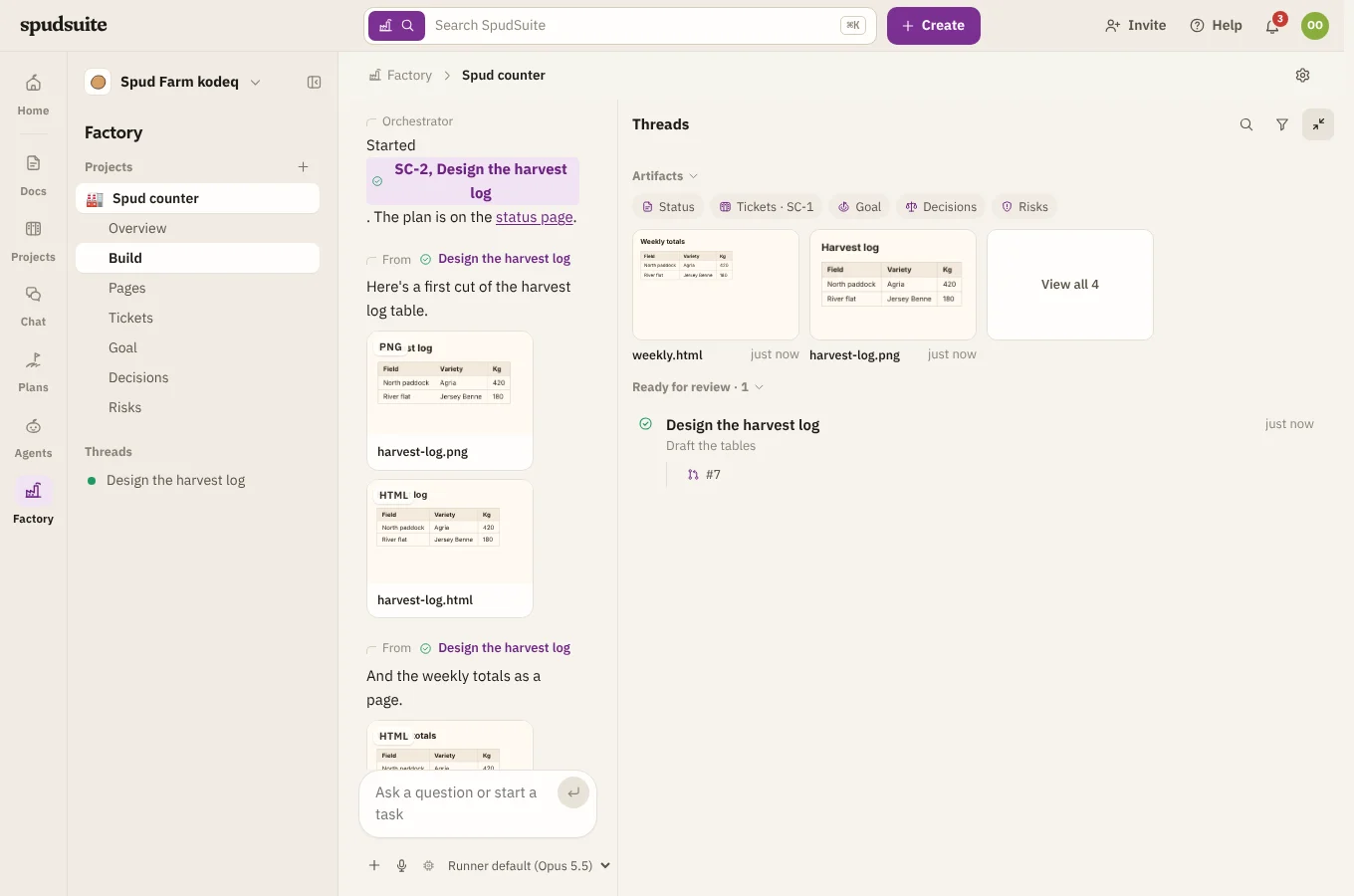
Open a thread to see its messages, its checklist and what it's changed. Search threads, or filter them, from the top of the panel, and click the widen arrows to give the list all the room but a strip for the chat.
Models
Each thread runs on a Claude model: Opus for hard design and debugging, Sonnet for most building, Haiku for quick, mechanical jobs.
- The project's Default model, which you can change under the project chat's message box or in its settings, is what the orchestrator runs on, and what each thread runs on unless the orchestrator picks another for the work.
- Without a default model, threads use whatever the runner's Claude Code is set to. That depends on its Claude account and its own
/modelsetting. Once the runner has run a turn, the picker names it, such as Runner default (Opus 5.5), and each choice shows the version it runs, such as Opus 5.5. - To change one thread's model, open it and choose the model under its message box. Its next turn uses the new model and carries on the same conversation.
Local models
When a runner has local models set up, the model pickers also list them, in two groups:
- Local first, then Claude: the thread runs on that local model, through Claude Code on the runner's own machine. When the machine is busy, the turn runs on Claude instead, and the thread says so.
- Local only: the thread never leaves the machine. When the local model is busy, the turn waits for up to 10 minutes, then fails. These threads only go to runners with local models.
Runner default follows the runner's Agents and Factory threads that don't choose setting, and says what that means, such as Runner default (Local first: qwen3:14b, then Opus 5.5). Choose a Claude model to keep a thread on Claude whatever the runner says.
Local models are smaller than Claude, so they suit quick, well-described jobs best. Prompts and answers stay on the runner's machine, and local turns cost nothing. The runner needs to be version 0.1.21 or later.
Sending screenshots and files
Show it what you mean. In the project chat or a thread, click the paperclip to attach files, paste a screenshot straight into the message box, or drop files on the chat. Send up to ten at a time, with or without words.
The runner saves them on its machine before the thread reads your message, even mid-turn, and tells Claude Code where they are. Claude Code opens images to look at them, and reads other files, such as logs, data or a spec, like any file in its folders. Only people who can see the project can open them in SpudSuite.
Talking instead of typing
Click the microphone in the message box and say what you want. Your words appear in the box as you speak, so you can check them before you click Send. Click it again, or send, to stop listening.
It uses your browser's own speech recognition, so it works in Chrome, Edge and Safari, on computers and phones. The first time, your browser asks to use the microphone. Some browsers send the audio to their maker's service to turn it into text; SpudSuite never receives or keeps the recording. If your browser can't do it, there's no microphone button.
Talking to each other
Threads and the orchestrator message each other directly. If a thread thinks part of its brief belongs to another thread, or needs a new one, it tells the orchestrator and carries on with the rest.
You don't need to read all of it, so the project chat folds each of those messages into one line, such as Message from a thread or Sent to one. Click the line to read the message, and Open the thread to see the rest.
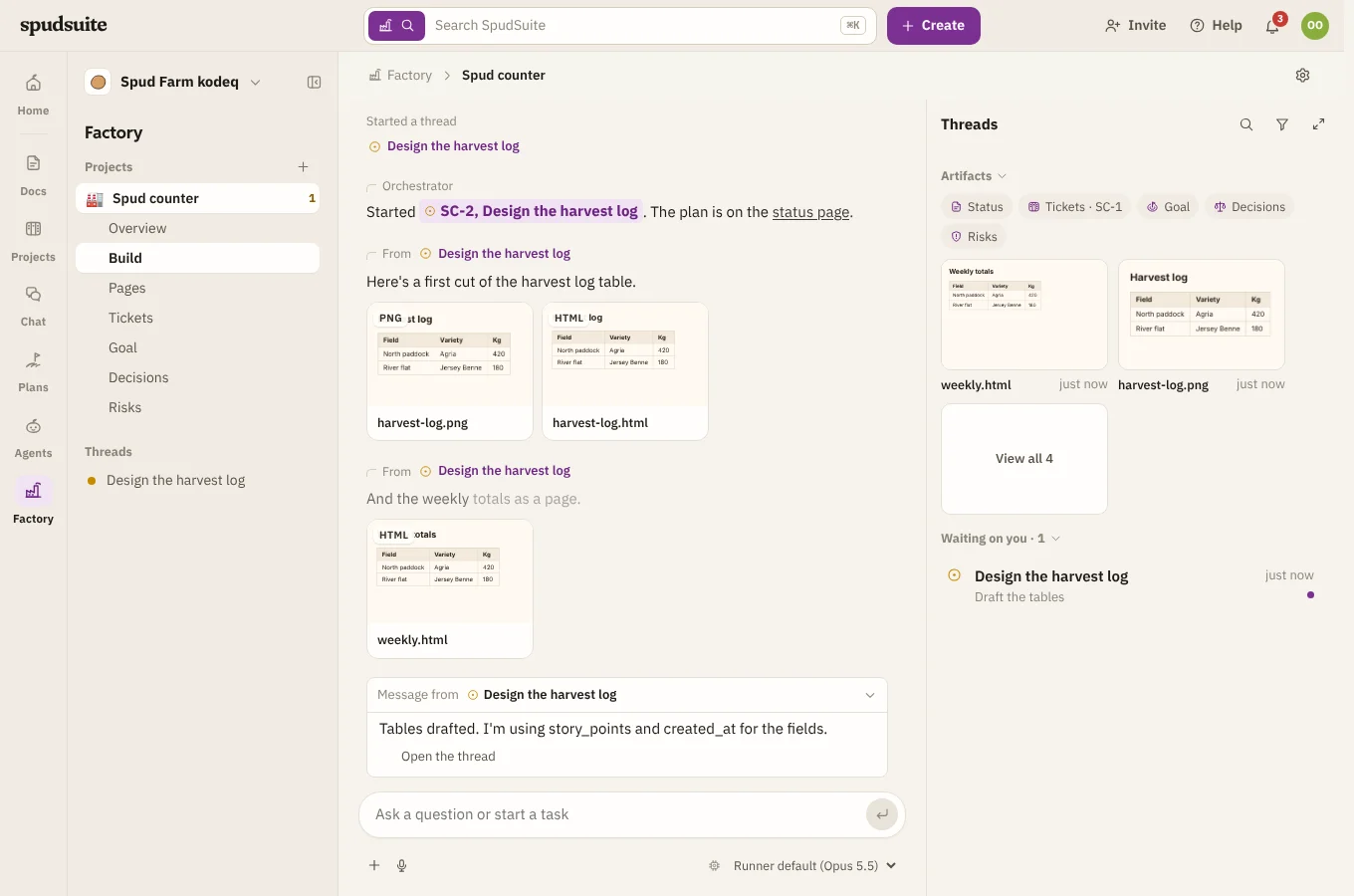
Threads are kept between turns and across restarts: each one's messages, checklist and decisions are saved in SpudSuite, and its Claude Code conversation is saved on the runner, so it picks up where it left off.
Screenshots, mocks and files from threads
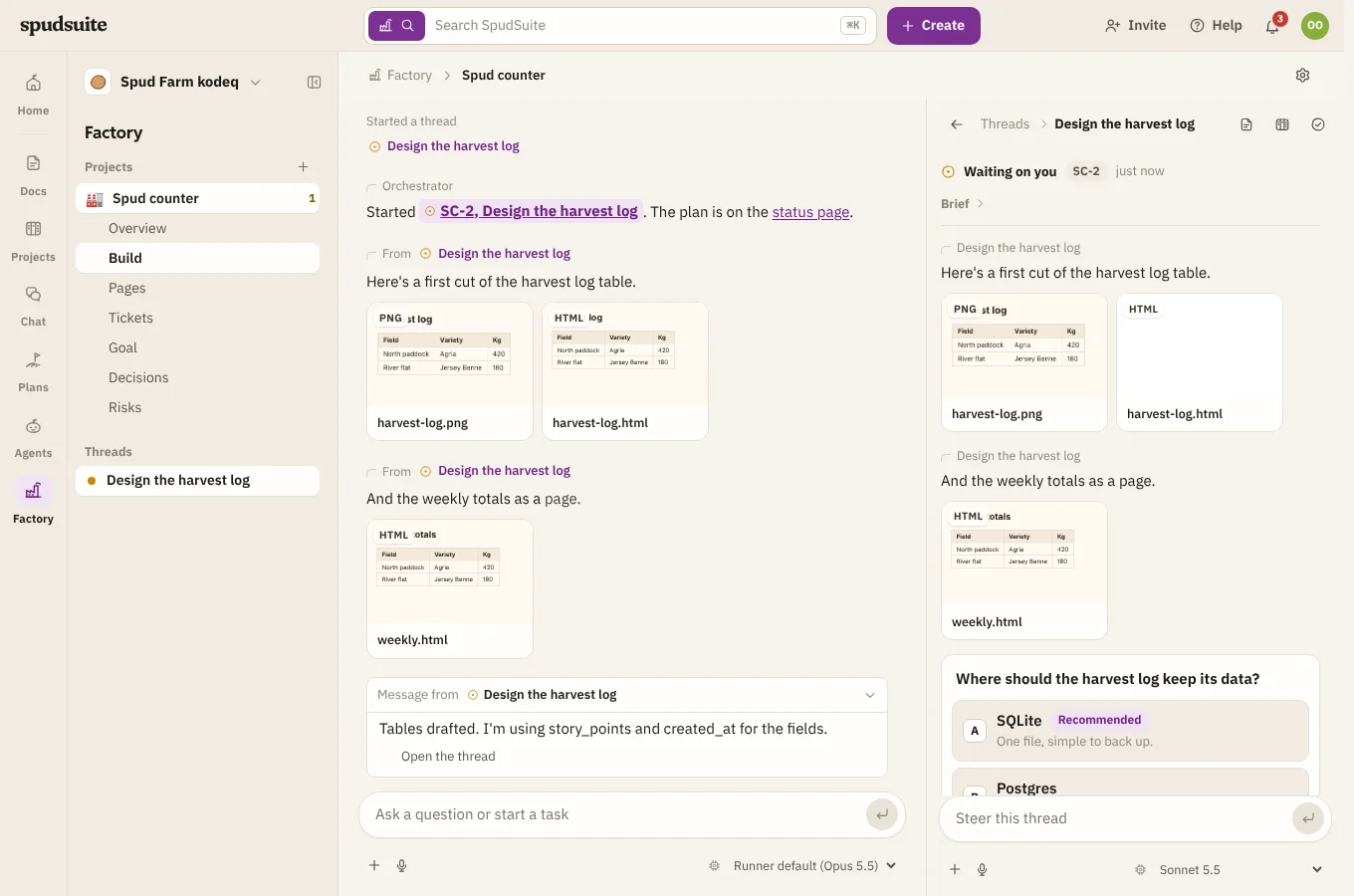
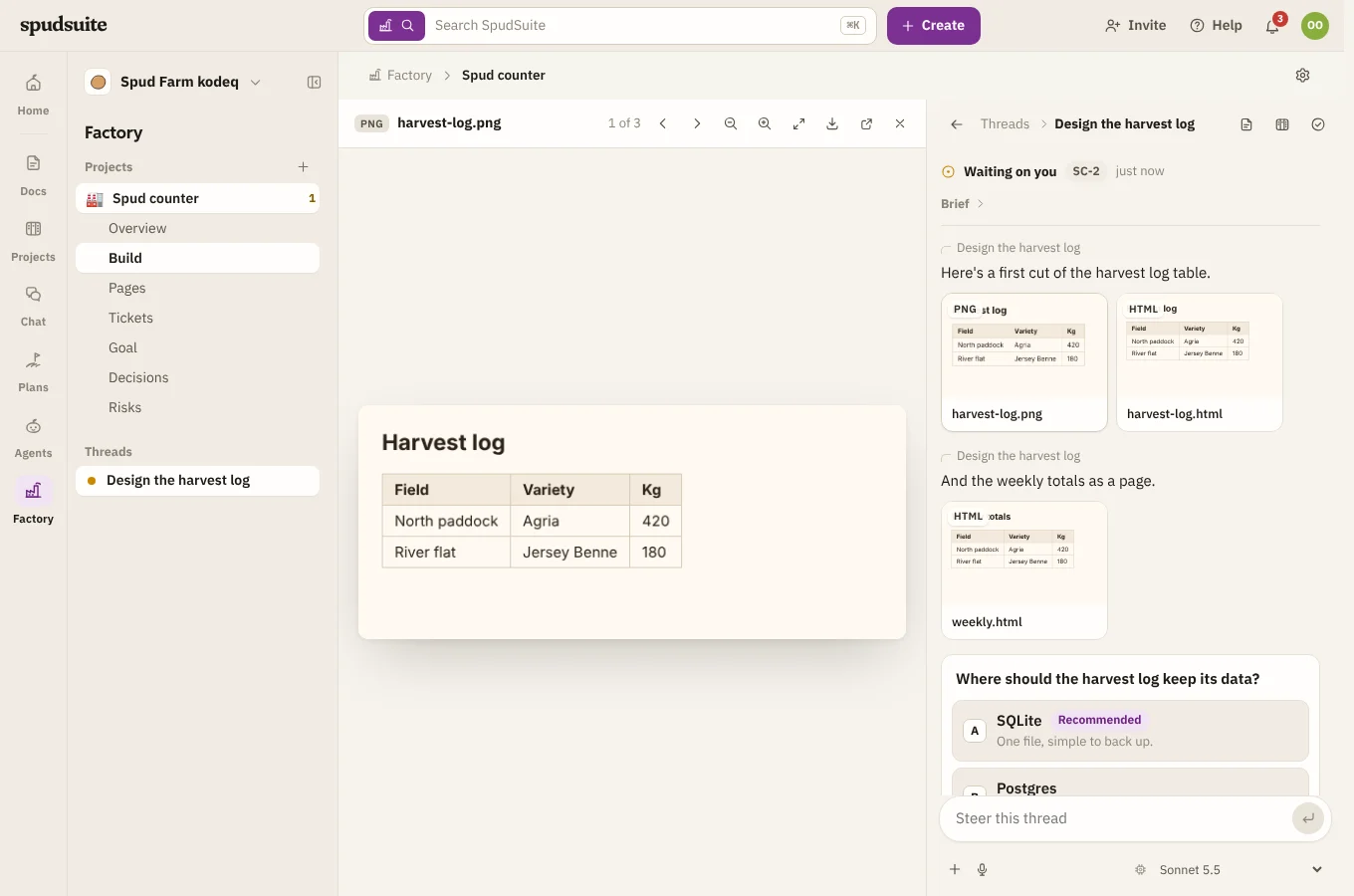
Threads show you what they make instead of only describing it. A post can carry up to ten files from the thread's folder on the runner, up to 10 MB each, and each one shows as a tile: a small preview, its type (such as PNG or HTML) and its name.
- Click a screenshot or mock to open it over the chat, with the thread's conversation still beside it. Zoom in, Zoom out or see it at actual size, step through the conversation's other files with the arrows (or ← and →), Download it, or open it in a tab of its own. Press Esc to close it.
- Anything else, such as a PDF or a build, downloads.
Threads prefer images. When one designs a screen as an HTML mock, it takes a picture of it with a headless browser on the runner and shares that first, adding the HTML only when you'd want to click through it. HTML mocks open in a sandbox, so their scripts don't run and they can't reach your account. A mock's own stylesheets and images, from its folder on the runner, go inside it when it's shared, so it looks the way the thread made it.
What a thread shares also shows in the project chat, under From and the thread's name, so you see it where you talk to the orchestrator. Threads share files straight from their folder, so you can see a mock before anything is committed.
Only people who can see the project can open its files.
Docs written as you watch
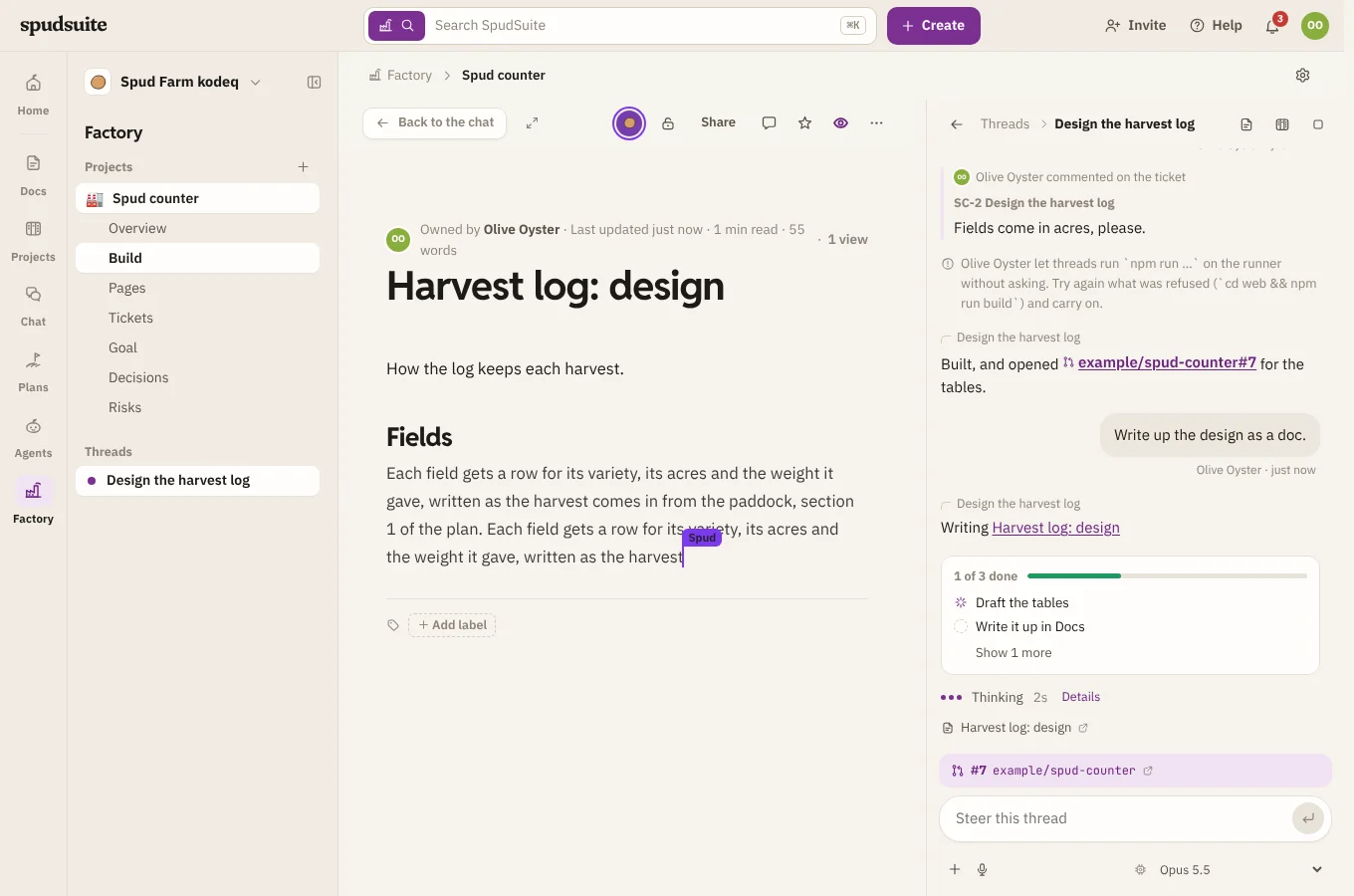
When a thread writes a plan, a design or another longer doc, it makes the page in Docs first and then writes it a section at a time. The thread posts Writing and the doc's name; click it to open the doc beside the conversation, or find it in Docs.
While it writes, Spud is on the page with you: a purple cursor labelled Spud moves along as the words arrive, a potato avatar at the top says Spud is writing, and each new word fades in softly. If you've asked your device to reduce motion, the words appear without the fade. You can read, comment and edit while it writes; when it's done, the cursor goes.
When a thread isn't allowed to run something
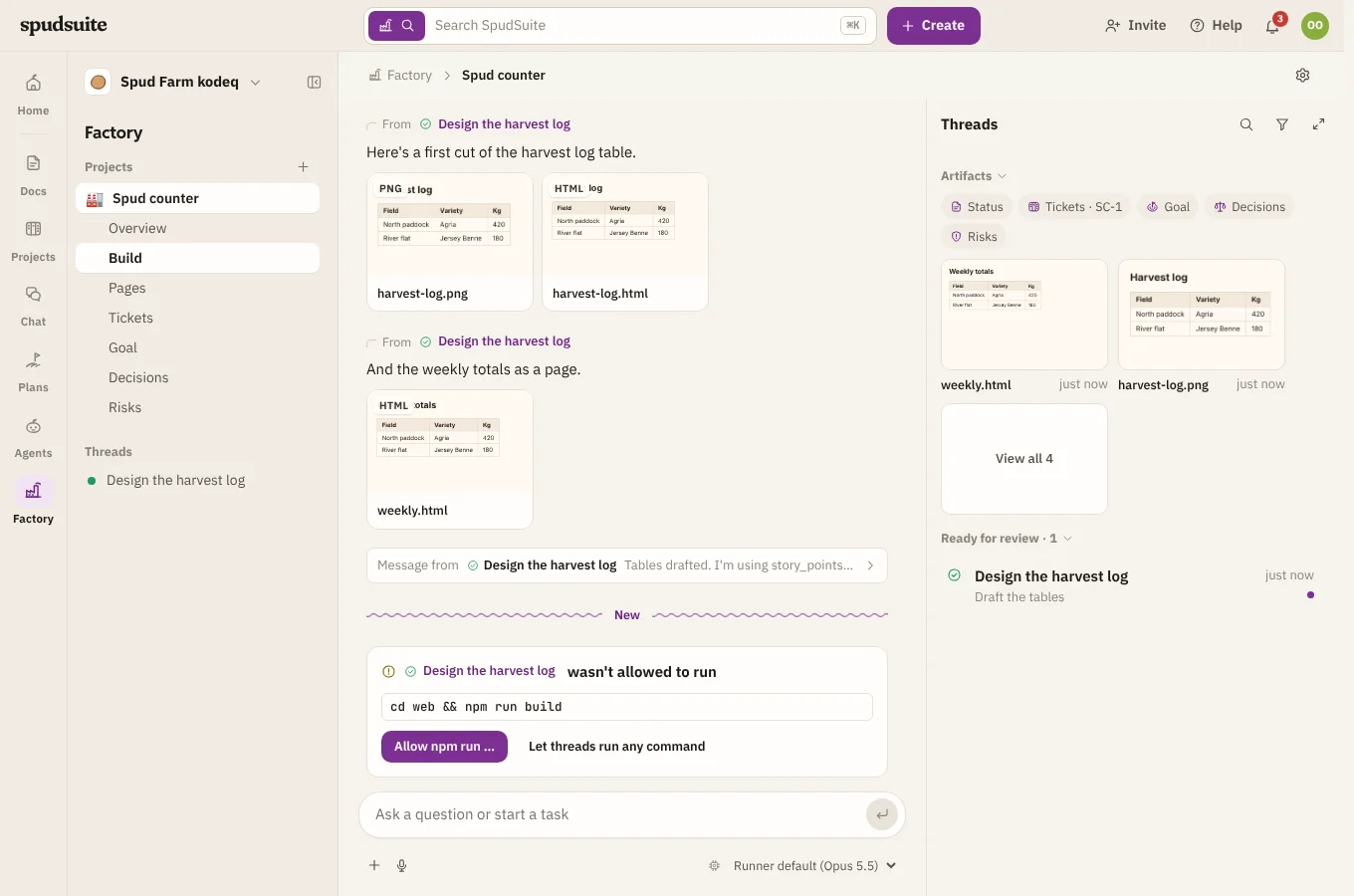
Threads can always run git, the GitHub CLI and a headless browser (Playwright) for screenshots. If Claude Code on the runner refuses another command, the project chat shows what was refused, with two choices:
- Allow the command, such as Allow npm run …. Threads in this project can then run commands that start that way.
- Let threads run any command, for this project.
Either way, the thread tries again straight away. You can take an allowed command back in the project's settings.
When a turn stops with an error
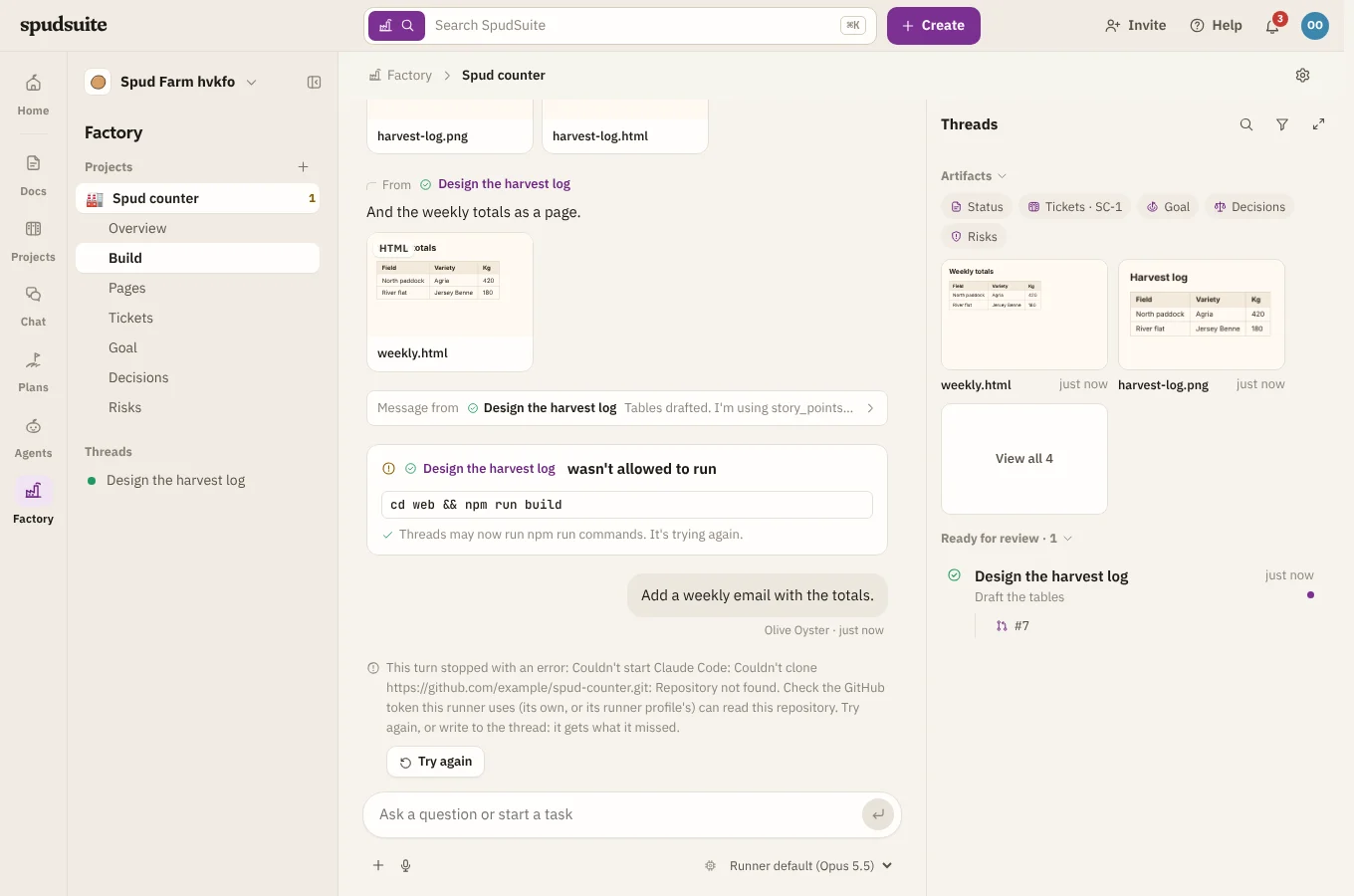
Sometimes a turn stops before it finishes, for example when the runner can't clone the repository or stops answering. The thread shows what went wrong, in Claude Code's own words where it said something, with Try again beside it.
If the runner restarts partway through a turn, the turn ends as soon as the runner checks in again, and anything you wrote meanwhile starts a new turn. A runner waits for its threads to finish before it updates itself. If a thread's earlier Claude Code session isn't on the runner any more (say the runner's container was replaced), the thread starts a new session and catches up from its page and ticket.
SpudSuite tries again by itself, so work carries on while you're away:
- If the runner stopped answering or restarted, it tries again as soon as the runner is back.
- If the turn stopped with an error, it waits 1 minute, then 5, 15, 30 and 60 minutes between tries.
- After 5 tries in a row it stops and says so.
- It doesn't try again when trying can't help, such as when Claude Code isn't signed in, an API key is wrong, or the runner isn't allowed to read a repository. Fix that first, then choose Try again.
The note under the error says when the next try is and which one it is, and it's the same note each time: it changes to say which try it's on (2 of 5, say) rather than adding another. To go straight away, choose Try now: the thread is queued, and if no runner can take it yet, it says why. Stop this thread also stops it trying.
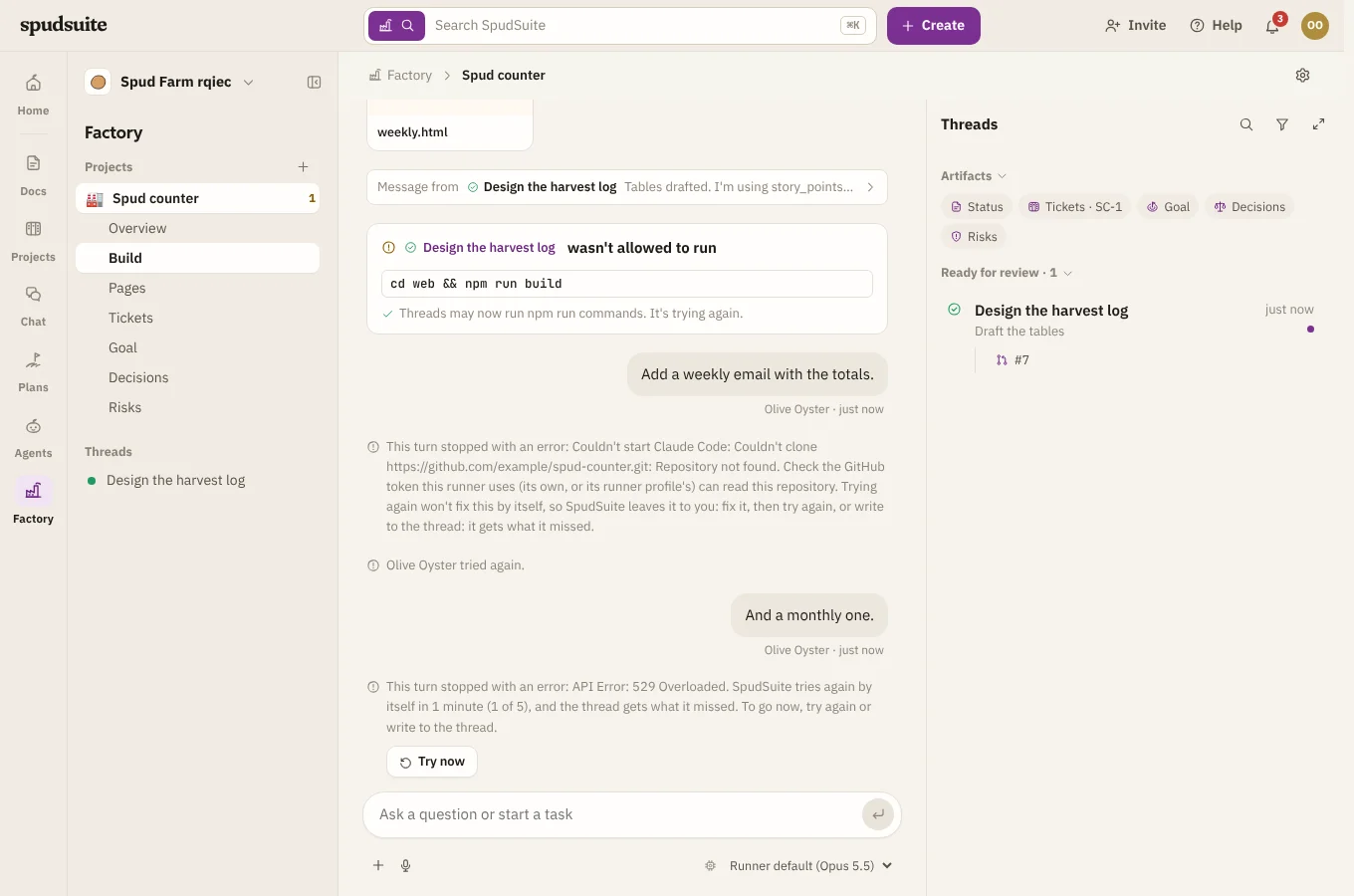
To try again yourself, choose Try again, or just write to the thread. Either way, the next turn gets everything the failed one was given, including any screenshots and files you sent, so you don't need to repeat yourself. Stop this thread is different: a stopped turn's messages aren't sent again.
If the error says the runner couldn't clone a repository, check the runner can read it: sign the runner in to GitHub, or give it (or its runner profile) a GitHub token with access to that repository.
Decisions
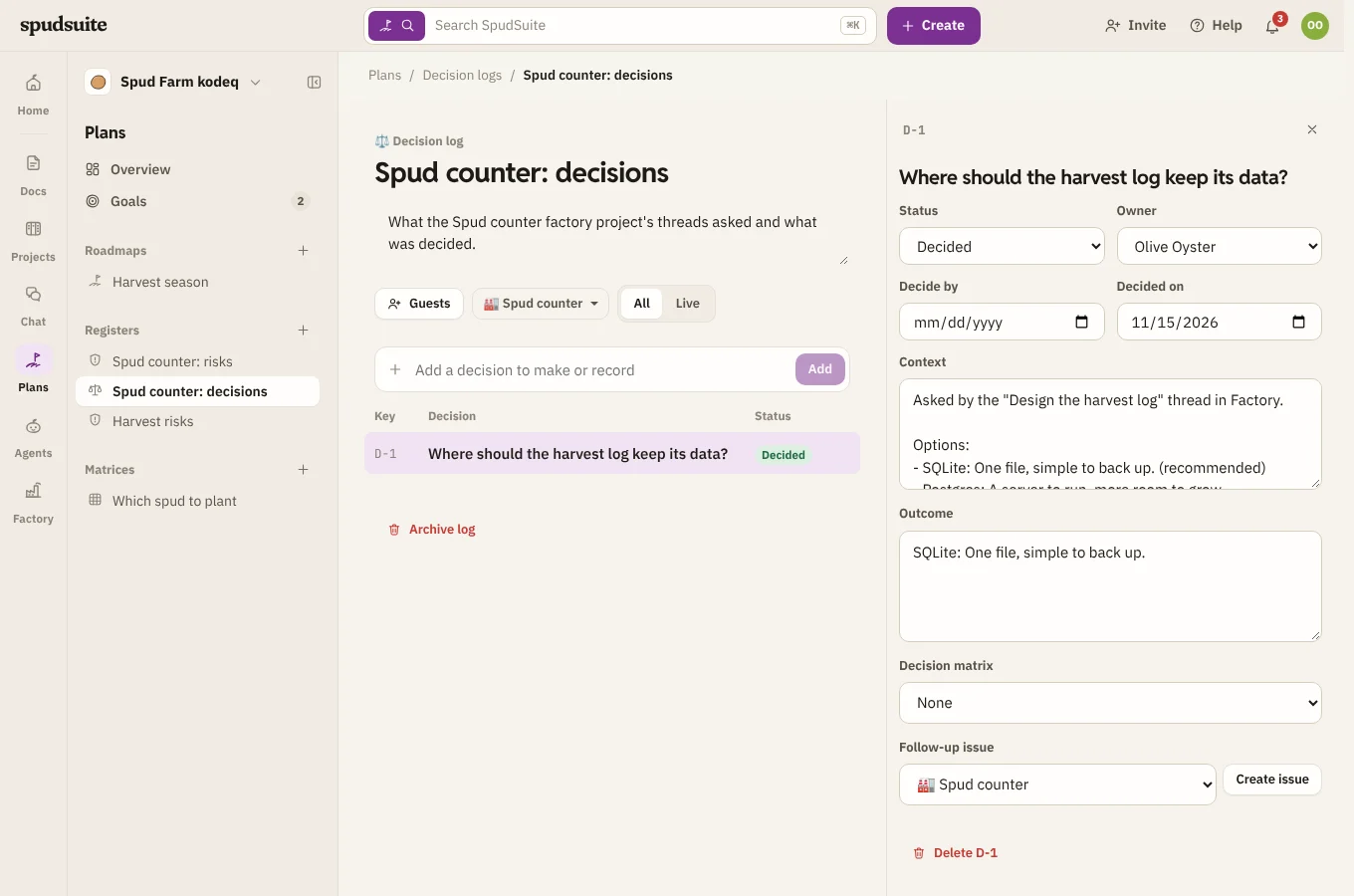
When a thread needs you to choose, it asks a multiple-choice question with a recommended option. Pick one and the thread carries on. Every question and answer goes into the project's decision log in Plans, so you can look back at why things are the way they are.
Steering
There are three ways to tell Factory something:
- In Factory: write in a thread (Steer this thread), or in the project chat to reach the orchestrator.
- On a thread's page or ticket: comment on the thread's page in Docs, or its ticket in Projects, and the thread reads it.
- On the status page: comment on the project's status page in Docs to reach the orchestrator.
So a teammate who lives in Docs or Projects can steer the work without opening Factory.
Stopping and finishing
- Stop stops it where it is. While the orchestrator or a thread is working, the send button under an empty message box turns into a square Stop button. Type something and it's Send again. A thread's panel also has Stop this thread at the top.
- Mark done closes a thread you're happy with; its ticket moves to Done.
Progress in Plans
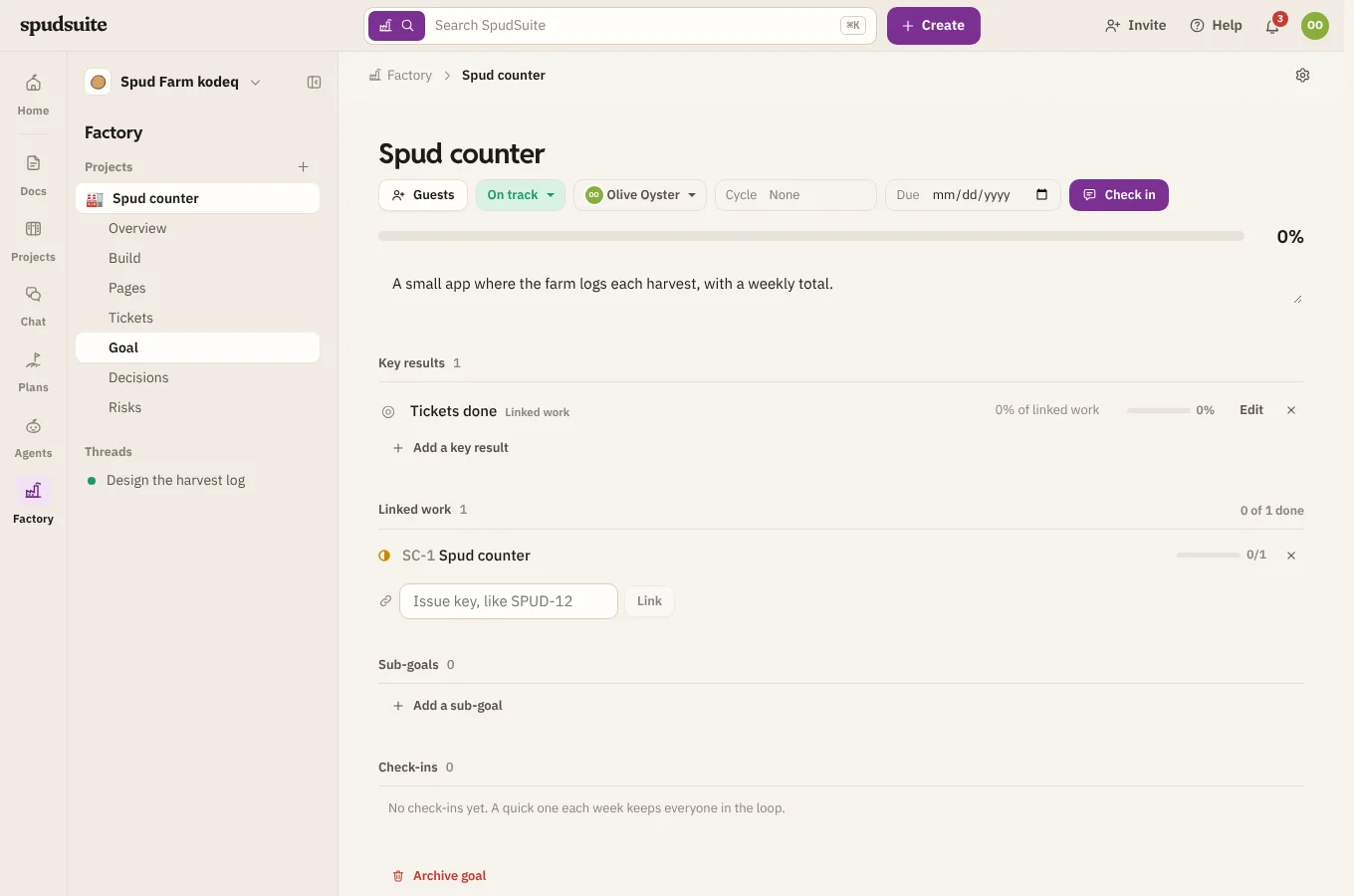
The project's goal in Plans has a Tickets done key result that follows the epic, so its progress moves as threads finish.
Threads keep the project's registers current as they work, not only at the end:
- Risks they spot go in the risk register, scored by likelihood and impact. When one is dealt with or changes, they update it, with a note saying what changed.
- Decisions go in the decision log. That includes questions they ask you, which your answer decides, and choices they or you make along the way.
- The goal gets a check-in when it's at risk, off track or back on track, with a note you can read in Plans.
The orchestrator makes sure this happens: it reminds threads to log what they find, and adds anything missing when a thread reports back.
Workflows
Workflows in Agents can send a project work, start threads and wait for them, and start when a thread finishes, asks a question or opens a pull request. A message a workflow sends shows as its bot, marked App. See Workflows and the Factory.