Getting started
SpudSuite on Android
The SpudSuite app puts every product (Docs, Projects, Chat, Plans, Agents and Factory) on your Android phone. It's the same SpudSuite you use in a browser, so anything new turns up in the app straight away, with a few things only an app can do: notifications, sharing from other apps, and a proper screen when you're offline.
Get the app
Download it from the Get the apps section of the SpudSuite home page and open the file on your phone. Android asks once whether your browser may install apps. Choose Allow, then Install.
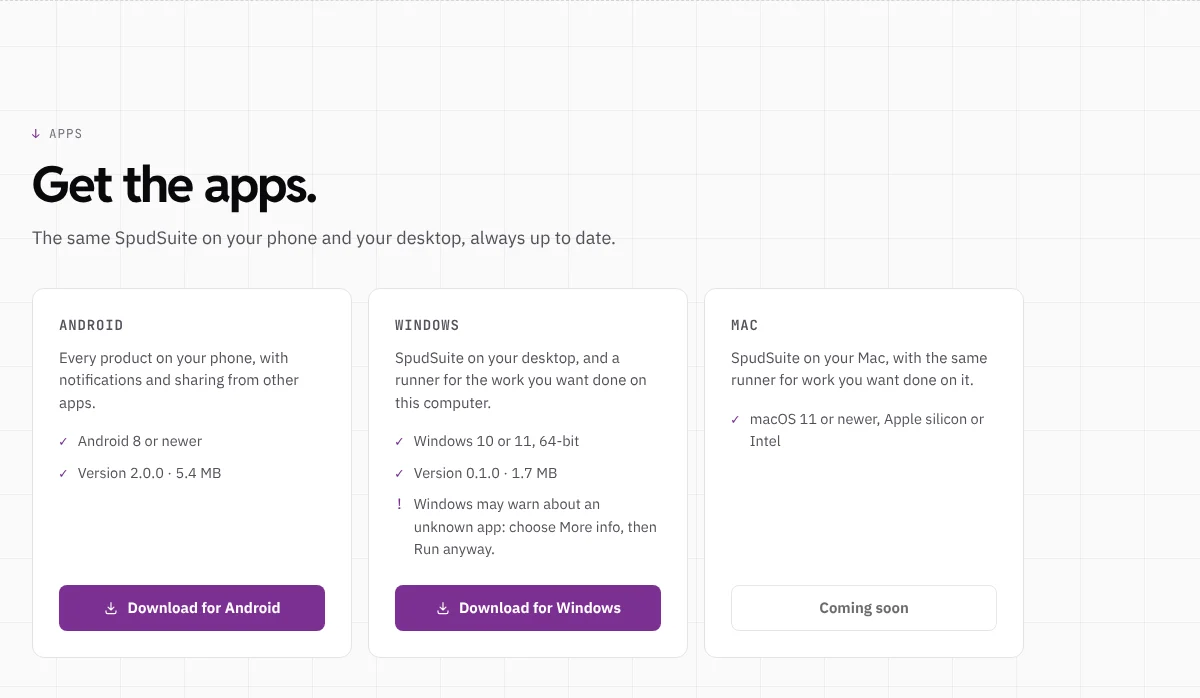
Each card shows the latest version and its size. A card that says Coming soon has no build out yet. The Windows app is described in This computer.
The test build is called SpudSuite (test), and it can sit beside the old SpudSuite app from the Play Store. You need Android 8 or newer.
Sign in
The app opens on the sign-in screen. Sign in the way you do on the web: with an emailed code, a password, or Sign in with Google. Google sign-in opens in a browser tab for a moment, then brings you back to the app already signed in. You stay signed in until you sign out.
Notifications
After you sign in, the app asks whether it may send notifications. Choose Allow. Anything that lands in your Inbox also arrives on your phone: mentions, things assigned to you, comments on pages you watch, and chat messages you'd hear about. Tap one to go straight to the page, issue or conversation.
Chat follows your settings for each conversation. A muted conversation only buzzes for mentions, and one set to Nothing stays quiet. To stop notifications on a phone, turn them off in Android's settings for SpudSuite, or sign out in the app.
Share to SpudSuite
In any app, choose Share, then Save to SpudSuite. You can share a link, or some text you've selected.
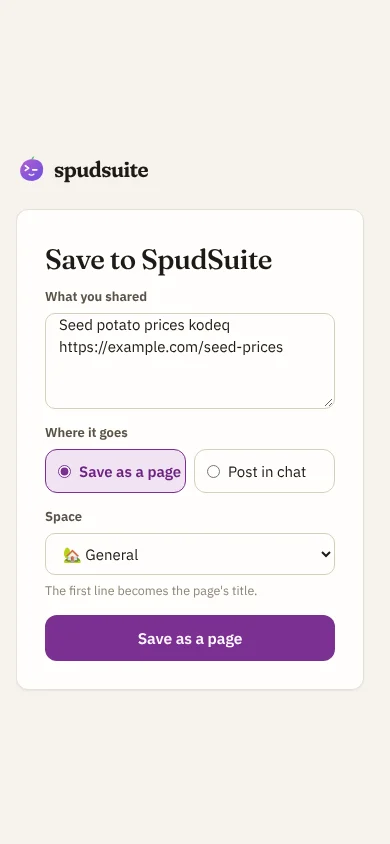
Edit the text if you like, then choose where it goes:
- Save as a page makes a new page in the space you pick. The first line becomes its title.
- Post in chat posts it in a channel you're in.
If you're in more than one workspace, pick the workspace first.
When you're offline
Without a connection, the app says You're offline instead of showing an error page. It picks up where you were as soon as you're connected again, or you can tap Try again. For now you need a connection to read and write.
Files
Attaching a file opens your phone's file picker or camera. Files you download from SpudSuite go to your phone's Downloads. Links to other sites open in a browser tab, and the back button takes you back through SpudSuite.