Agents
Integrations, triggers and secrets
The Connect part of Agents is where you say what your workflows can reach and what starts them: integrations and your connections to them, triggers that start runs on their own, and the names of the secrets your runners hold.
Integrations and connections
Integrations is one page for everything your workflows can reach. It has two parts:
- Connected: SpudSuite itself (Docs, Projects, Chat and Plans, always there), then each connection you've set up, with whether the secrets it needs are on a runner and when its last webhook came in.
- Add an integration: the catalog of what you can connect, such as GitHub, Jira, Slack, Telegram, MCP servers and plain webhooks. Each card says what the integration can react to (events), do (actions) and look up (resources). Runners add any extra integrations installed on them.
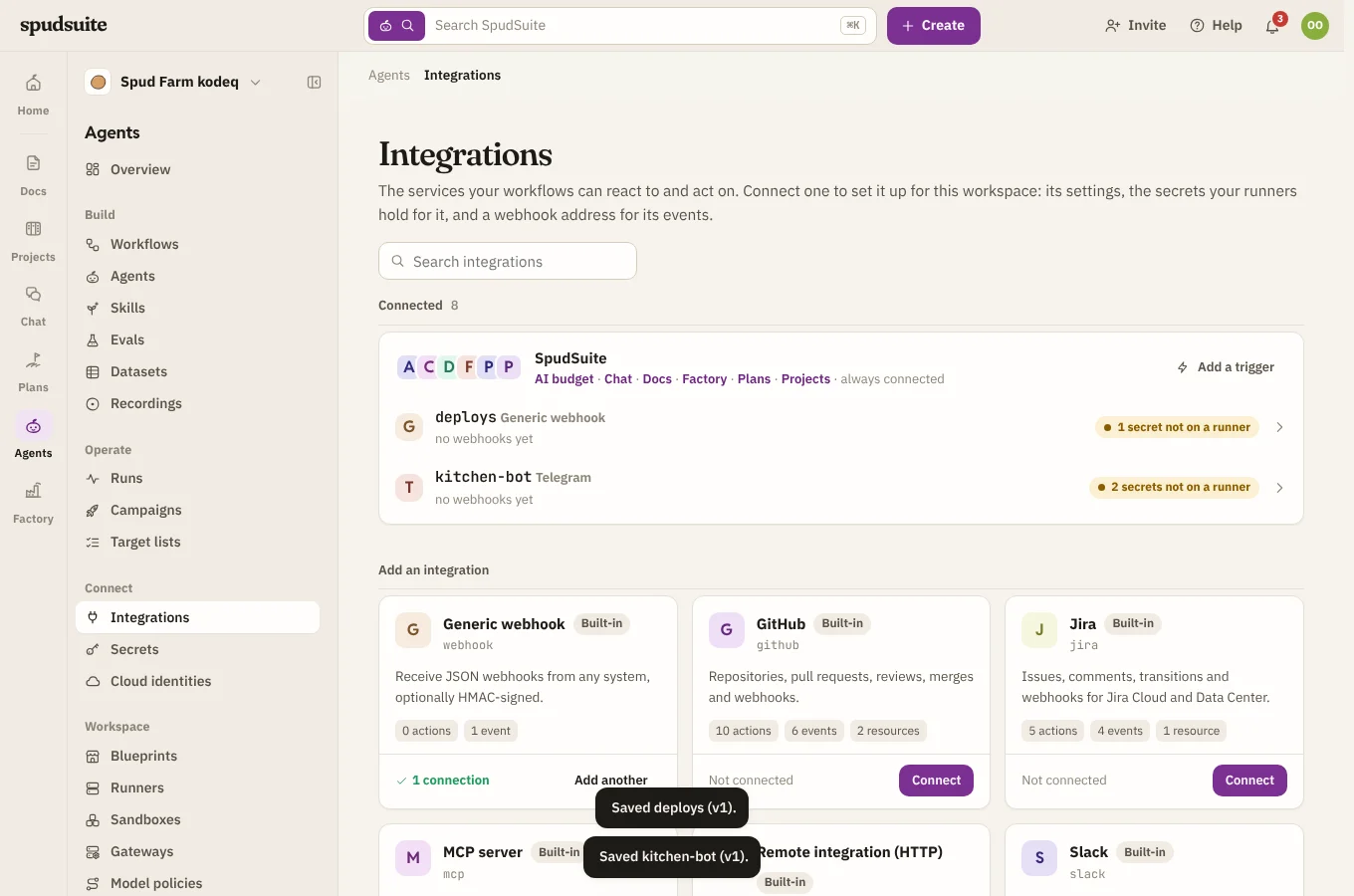
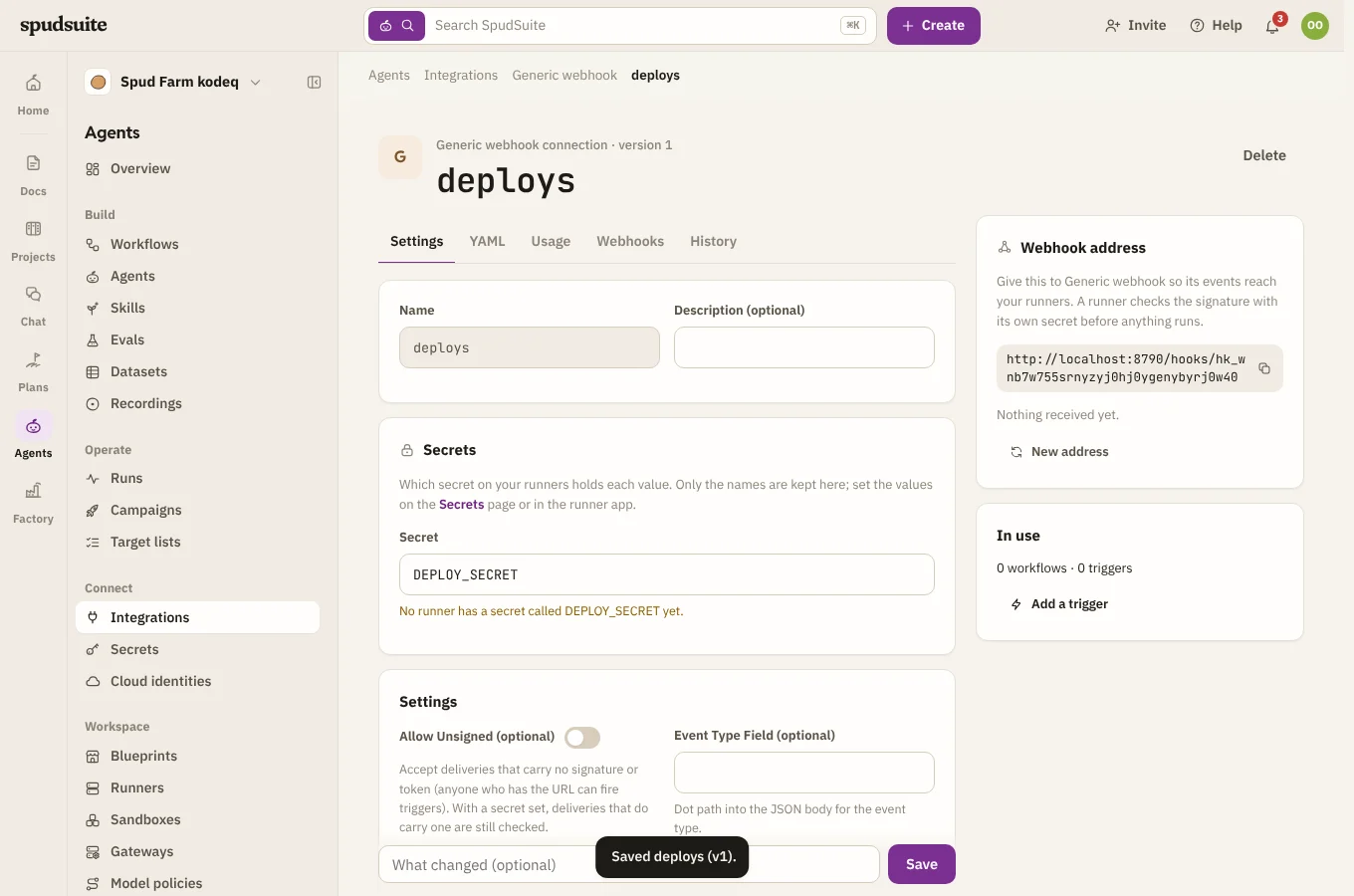
A connection is an integration set up for your workspace: its settings, which secret on your runners holds each of its keys, and a webhook address for its events. Choose Connect on a card (or Add another for a second one, such as a second Slack workspace). Open an integration to see its connections first, then its actions and events.
- Settings that aren't secret (an organisation name, a base URL) are kept in SpudSuite.
- Keys and tokens are only ever named, such as
GITHUB_TOKEN. Their values stay on your runners (see Secrets), and SpudSuite refuses to save a value in a connection. - The connection page shows which runners hold the secrets it needs, so you can see where its workflows can run.
Workflows use a connection by its name, like connection: github. SpudSuite's own connection, spudsuite, is always there.
Telegram
To start workflows from a Telegram bot, make the bot with @BotFather and connect Telegram:
- Put the bot's token in a secret on a runner, and choose a webhook secret (any 1 to 256 letters, digits,
_and-) for a second one. The connection names both. - Point the bot at the connection's webhook address. The connection page gives you a
setWebhooklink to open with your token and webhook secret filled in, or a workflow can run the connection'sset_webhookaction so the token never leaves your runner. - Add a trigger on the connection. The events are message, command (a message starting with
/, withevent.commandandevent.args), edited_message, channel_post and callback_query (someone pressed one of the bot's buttons). You can narrow a trigger to some chats, people, commands or words.
Runs reply with send_message (optionally with inline buttons), send_photo, edit_message_text and answer_callback_query. A delivery without the right webhook secret is refused, and Allowed chats on the connection ignores every chat but those you list.
Webhooks
Each connection has its own webhook address, like https://agents.spudsuite.com/hooks/hk_…. Point the service (GitHub, Jira, Slack, your own app) at it. SpudSuite passes each delivery to a runner, which checks its signature with its own copy of the secret and fires any triggers that match. The connection's Webhooks tab lists each delivery and what the runner made of it. Make a new one replaces the address if it ever leaks; the old one stops working straight away.
Each address takes up to 300 deliveries a minute. Past that it answers 429 Too Many Requests with a Retry-After header, and services such as GitHub, Slack and Telegram send the delivery again later.
Triggers
A trigger starts a workflow by itself. Triggers live on the Workflows page, beside the workflow each one starts. Choose New trigger at the top, or Add a trigger on a workflow's card, and pick what starts it:
| Starts on | Such as |
|---|---|
| Something happens in SpudSuite | An issue is created, moves status or gets a comment; a message is posted; a page is created, trashed or commented on; a goal is checked in; a risk is added |
| A connection sends an event | A pull request is opened on GitHub, a Slack message arrives |
| A schedule | Every weekday at 9:00 in your time zone, written as cron (0 9 * * 1-5), with a preview of the next five times |
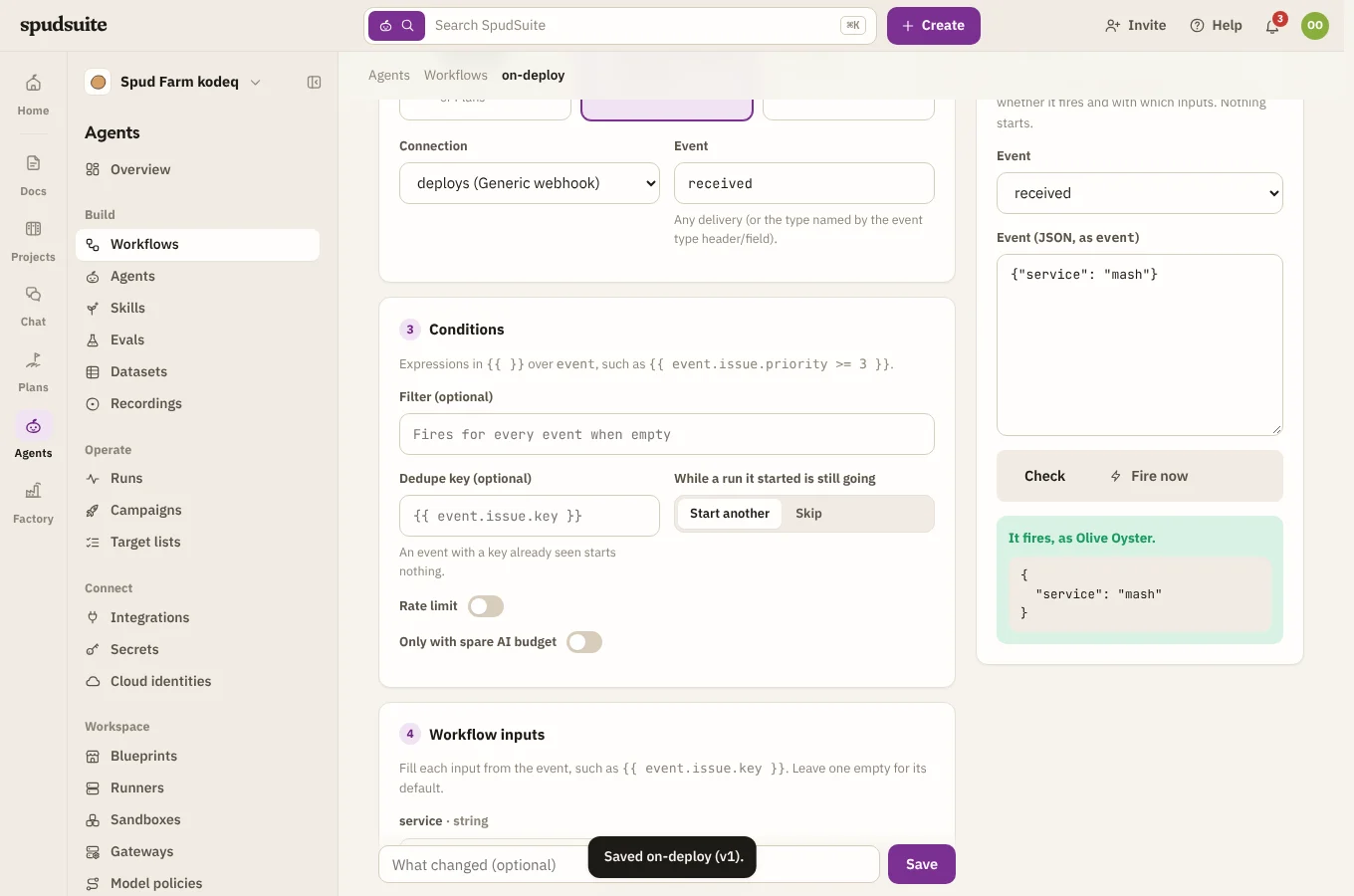
Then narrow it down and say what the run gets:
- Event: use
*for any part, as inissue.*. - Conditions: match on fields such as project, status, type, priority, space, channel or who did it.
- Filter: an expression for anything else, like
{{ event.issue.priority == 'urgent' }}. - Workflow inputs: fill each of the workflow's inputs from the event, such as
{{ event.issue.key }}. - Dedupe key: an event with a key already seen starts nothing.
- Rate limit: at most so many runs over a time, such as 10 per hour.
- Overlap: skip a new run while one it started is still going.
- Only with spare AI budget: start only while a runner has spare capacity, such as a Claude plan with more than 20% spare. See AI budget.
Try it before it's live
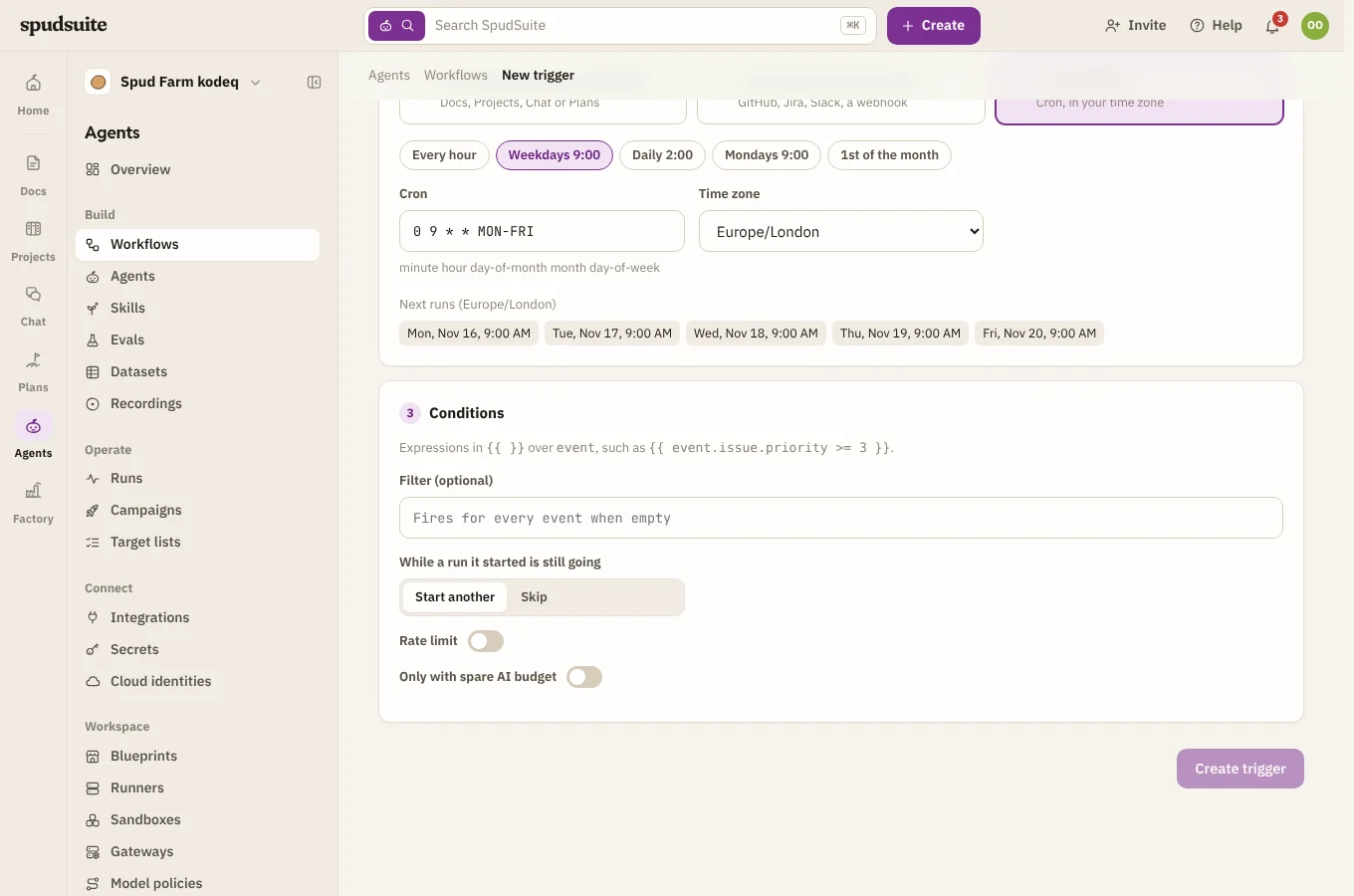
Check tests the saved trigger against an example event: whether it fires and with which inputs. Nothing starts. Fire now starts a real run with the event you give it.
Deliveries
The Deliveries tab lists every event or schedule time that reached the trigger, with the run it started, or why it didn't start one: filtered out, a duplicate, rate limited, skipped because a run was still going, not enough spare AI budget, or an error.
Who a run acts as
A run started by a trigger acts as whoever last saved the trigger, with exactly their permissions in Docs, Projects, Chat and Plans. If they leave the workspace, the trigger logs an error until someone else saves it. A run's own changes never set off the trigger that started it.
Secrets
Secrets are the API keys, tokens and passwords your workflows use. There are two kinds:
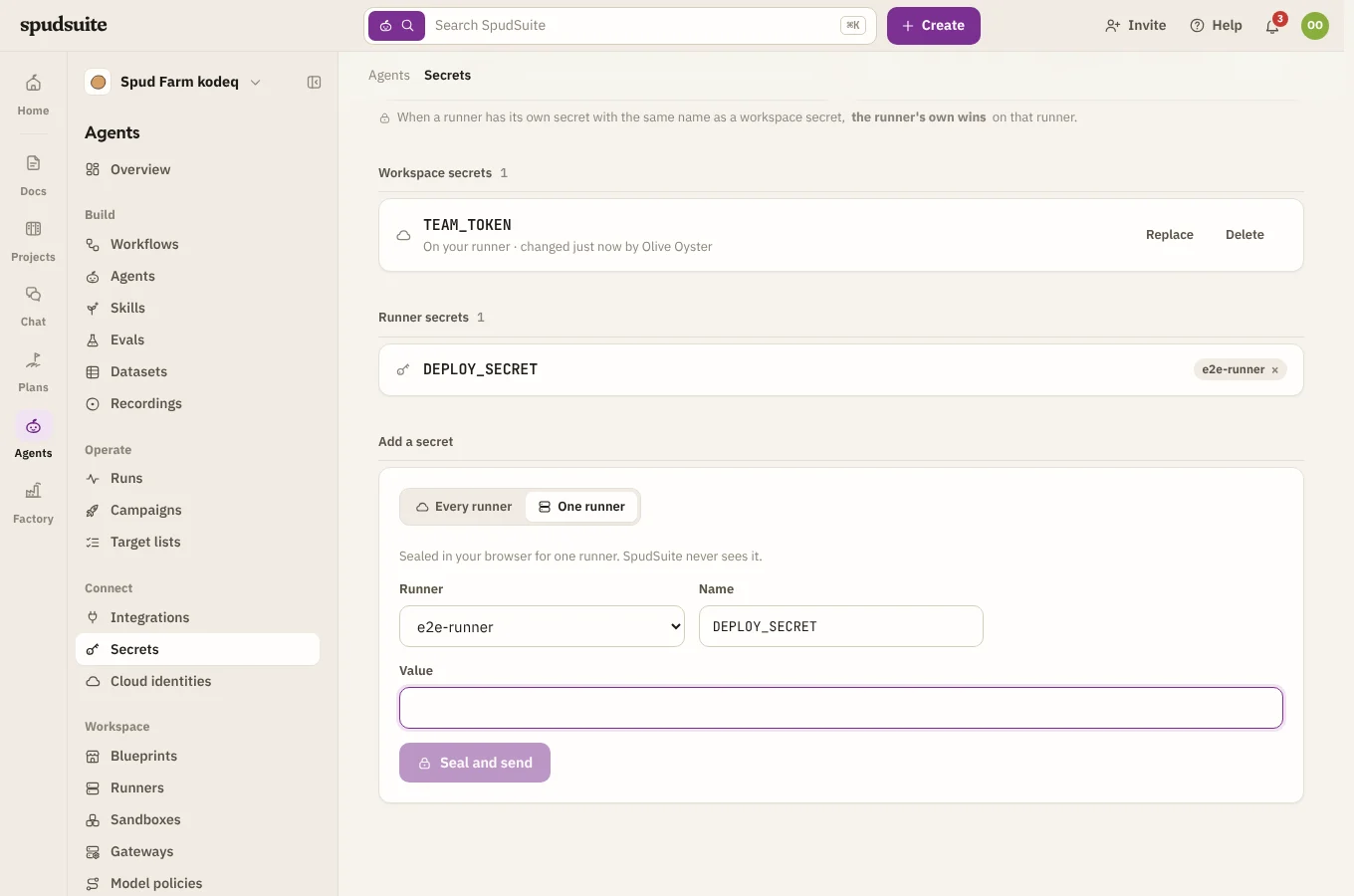
- Workspace secrets are kept by SpudSuite, encrypted, and copied to every runner in the workspace, including runners you connect later. Use them for a key the whole team shares, so you set it once. Runners in personal mode, on someone's own computer, don't get them.
- Runner secrets live on one runner only. SpudSuite never sees their values; it only knows their names.
If a runner has its own secret with the same name as a workspace secret, the runner's own wins on that runner. That lets one machine use a different key without renaming anything. The Secrets page says which runners use their own.
To give a group of runners a different value from the rest, such as a separate GitHub account, use a runner profile. A profile's secret wins over the workspace secret of the same name on its runners, and the Secrets page names the profile.
To add a workspace secret, choose Every runner under Add a secret, type the name and value, and choose Save for every runner. Each workspace secret shows which runners have it and which are still being sent it. Replace sets a new value everywhere, and Delete removes it from SpudSuite and from every runner. Nobody can read a workspace secret's value back, not even an admin.
To add a runner secret:
- In the runner app on that machine (see Installing a runner), or with the runner's command line on a server.
- From SpudSuite: choose One runner under Add a secret, pick the runner, type the name and value, and choose Seal and send. Your browser encrypts the value with that runner's own key before it leaves your computer. SpudSuite passes the sealed value on and deletes it once the runner has it, and can't read it at any point.
Workflows refer to secrets by name (secrets.SLACK_TOKEN), and connections and gateways name the secret that holds their key. Never paste a secret's value into a workflow, a chat or the assistant.