Factory
Project settings, GitHub and repositories
Everything you chose when you started a project can change later. Open the project, then click the gear in the top bar.
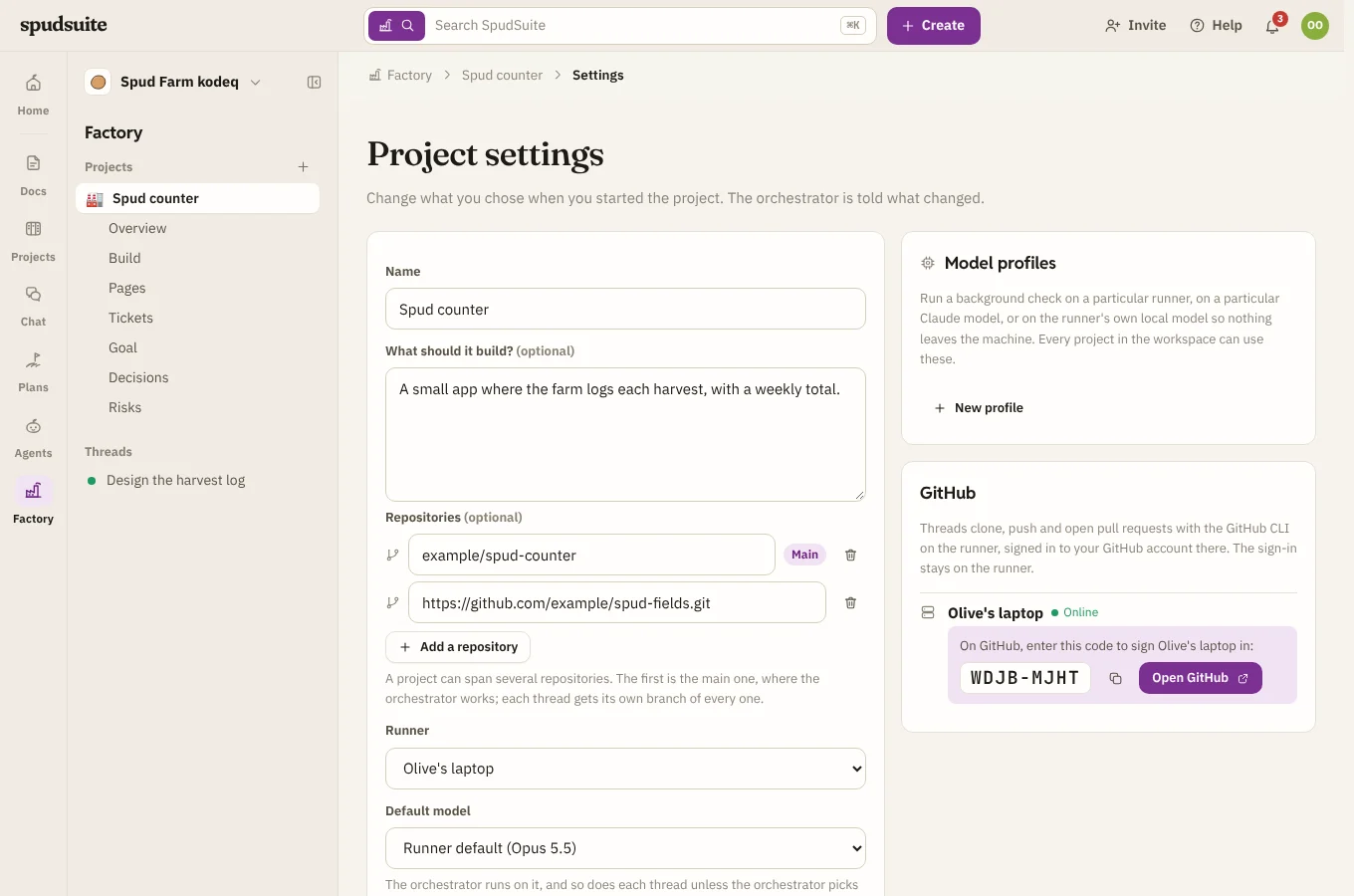
What you can change
- Name. The status page and the ticket board keep up. The project's folder on the runner keeps its first name, so nothing gets checked out again.
- What should it build? The goal in Plans changes with it.
- Repositories. See below.
- Runner. Pick another runner, or Any runner in the workspace. Moving a project to another runner starts each thread on a fresh Claude Code session there, because sessions live on the machine that ran them. Threads catch up from the status page and their tickets.
- Default model. What the orchestrator runs on, and each thread unless the orchestrator picks another for the work. See Models.
- Turns run on. The runner's choice, Claude Code, or The open harness, which runs turns on any model through the gateway chosen on the runner's page (see Factory turns on any model). Switching starts each thread on a fresh session.
- Commits are by. Who threads' commits show as on GitHub. See Who commits are by.
- Let threads run any command without asking. See Running commands. Below it are the commands you've allowed from the chat. Click the × next to one to stop allowing it.
- Keep Projects and Docs in step. See below. It's on for new projects, and you can untick it when you start one.
- Background checks: which ones run, how often, with which model profile, Up to how many runs a day, and Only on spare AI budget. See below.
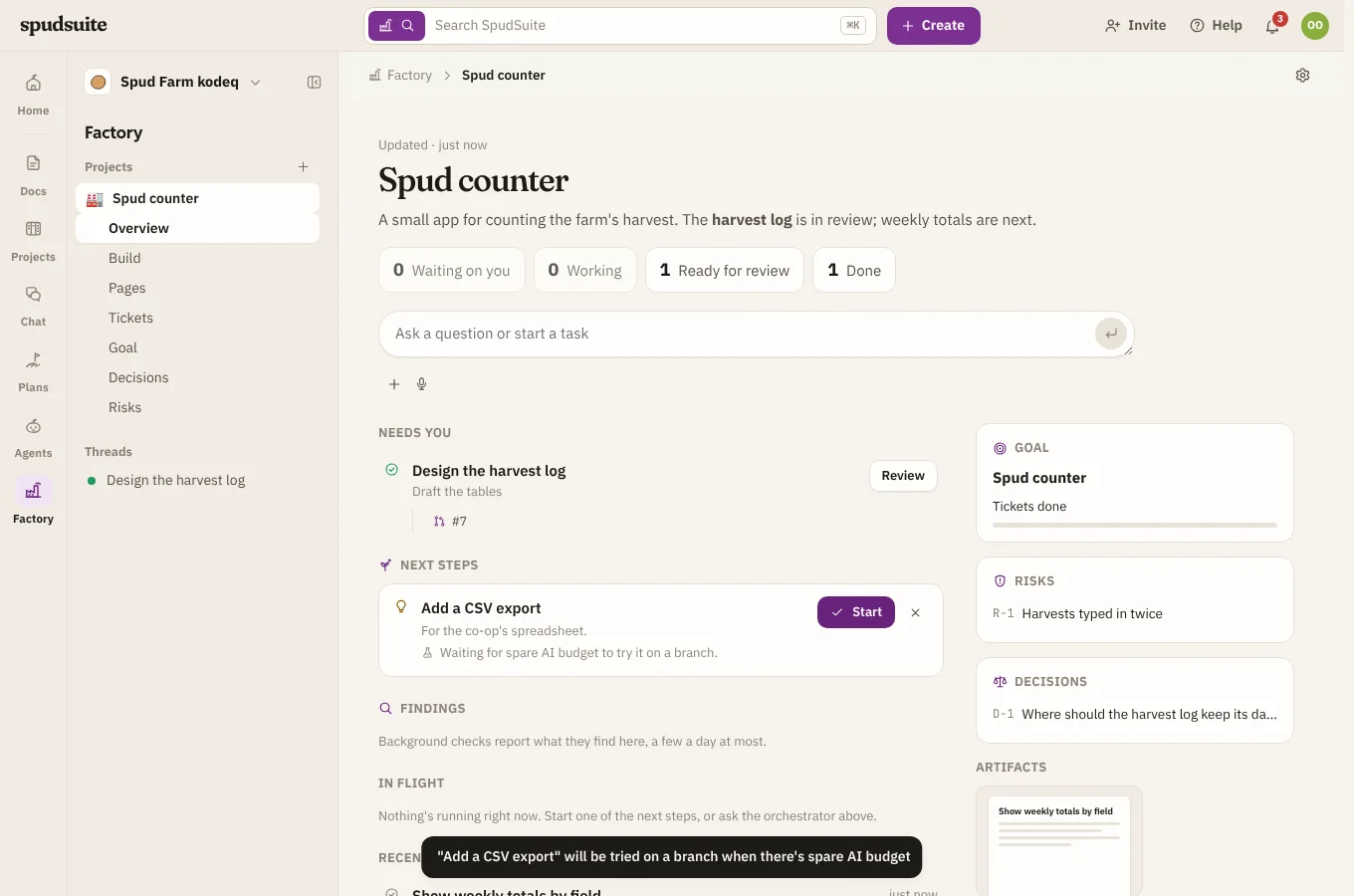
- Try ideas on branches and Review pull requests: work the runner does on spare AI budget. See Spare-time work.
Click Save. The orchestrator gets a note in its chat saying what changed, so it can plan around it.
To get rid of a project altogether, see Deleting a project.
Deleting a project
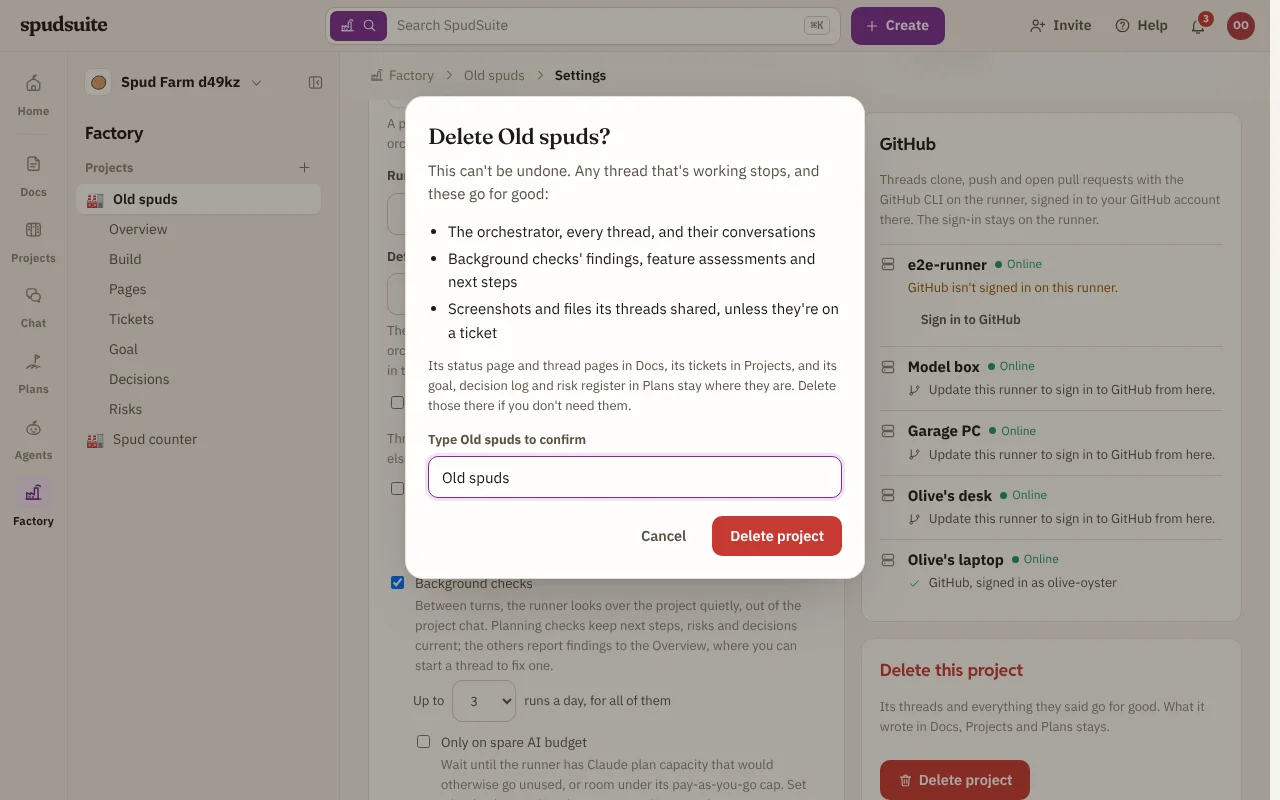
When you're done with a project, delete it from the bottom of its settings. You can if you started the project, or if your role includes Factory settings and budgets (owners and admins do).
- Open the project's settings, and under Delete this project choose Delete project.
- Type the project's name to confirm, then choose Delete project.
Deleting can't be undone. Any thread that's working stops, and these go for good:
- The orchestrator, every thread, and their conversations.
- Background checks' findings, feature assessments and next steps.
- Screenshots and files its threads shared, unless they're also on a ticket.
What the project made elsewhere stays: its status page and thread pages in Docs, its tracker and tickets in Projects, and its goal, decision log and risk register in Plans. Delete those there if you don't need them. The project's folder on the runner stays too.
Keeping Projects and Docs in step
Every project has a status page in Docs and a ticket for each thread in Projects. With Keep Projects and Docs in step ticked, which is how projects start, they follow the work closely and can drive it:
- When a thread finishes, what it did is added to its page under What happened, and posted as a comment on its ticket.
- Screenshots and files a thread shares are attached to its ticket too.
- A ticket you file in the project's tracker goes to the orchestrator as new work. It either starts a thread for it, using that ticket, or says on the ticket why not.
- The orchestrator keeps one documentation thread that writes the project's docs as it goes: an overview first, then pages that prove useful, such as how it's built, decisions made, how to run it and a glossary. Whenever the orchestrator or a thread learns something worth keeping, it passes it to that thread.
Comments on a thread's page or ticket always reach that thread, whether this is on or off.
Background checks
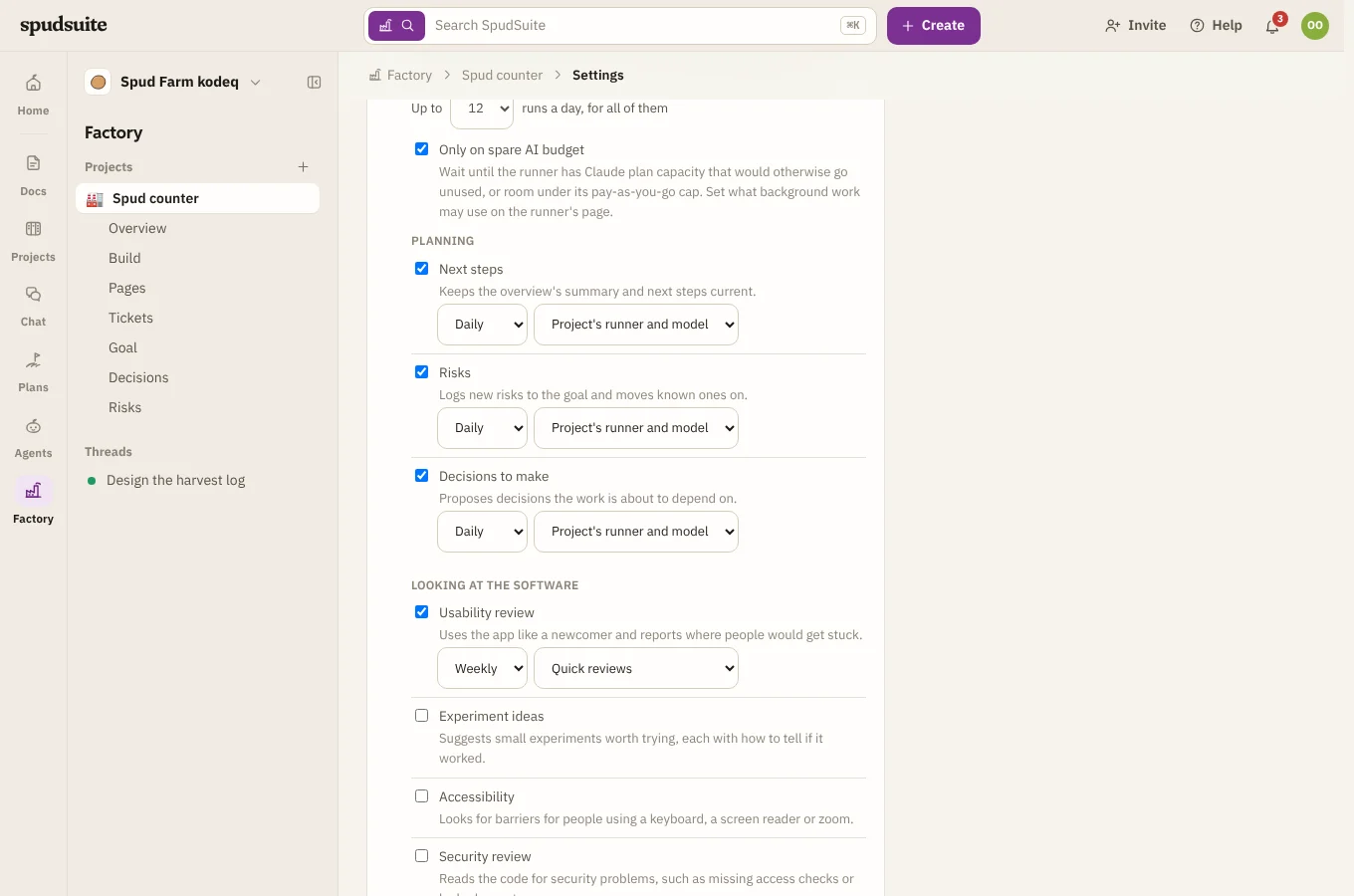
With Background checks ticked, which is how projects start, the runner looks over the project between turns. Each check has its own tick box, runs Daily or Weekly, and runs with the project's runner and model or with a model profile.
The Planning checks are on to start with:
- Next steps fills the Overview's next steps when there are none, and refreshes them when they're old and work has happened since.
- Risks logs risks it finds in the project's risk register, and moves ones already there on.
- Decisions to make adds decisions to the decision log, as proposed, with the options and the one it recommends.
The checks under Looking at the software start off. Tick the ones you want:
- Usability review uses the app like someone new to it and reports where people would get stuck. If threads may start the app (see the commands you let them run), it does, with a headless browser for a web app.
- Experiment ideas suggests small experiments worth trying, each with how you'd tell it worked.
- Accessibility looks for barriers for people using a keyboard, a screen reader or zoom.
- Security review reads the code for problems such as missing access checks or secrets in the repository.
- Test gaps finds important behaviour no test covers, and tests that fail or flake.
- Docs drift finds docs and help that no longer match what the software does.
- Dependencies looks for outdated, vulnerable or unused packages.
- Speed looks for slow screens, heavy downloads and wasted work.
- Feature assessments rates a feature at a time for usability, accessibility, security, reliability, speed, tests and docs, with recommendations. These show on Factory's home rather than as findings: see Feature health. They need SpudSuite Runner 0.1.29 or later.
The others report findings to the project's Overview, from SpudSuite Runner 0.1.25 on. Each check sees what it reported before, so it doesn't report the same thing twice, and it closes findings that have since been fixed.
The checks work quietly. Nothing they do shows in the project chat or in the orchestrator's conversation. Each check starts fresh rather than adding to the orchestrator's session. Checks run only when nothing else is waiting for the runner, one at a time, and only after there's been work to look at. They don't change the project's files.
Each run counts toward the usage of the account it runs on. Up to sets how many runs a project may make a day across all its checks: 3 to start with, and up to 12. Untick Background checks to stop them all.
Tick Only on spare AI budget to have checks wait until there's budget to spare. On a runner signed in to a Claude plan, that's capacity that would otherwise go unused before the plan resets, above what you keep back for yourself. On a runner whose Claude Code uses an API key, it's room under the pay-as-you-go cap you set, counting what background runs already spent. You choose both on the runner's page: see AI budget. While runs are waiting, the Overview's Next steps says why.
Model profiles
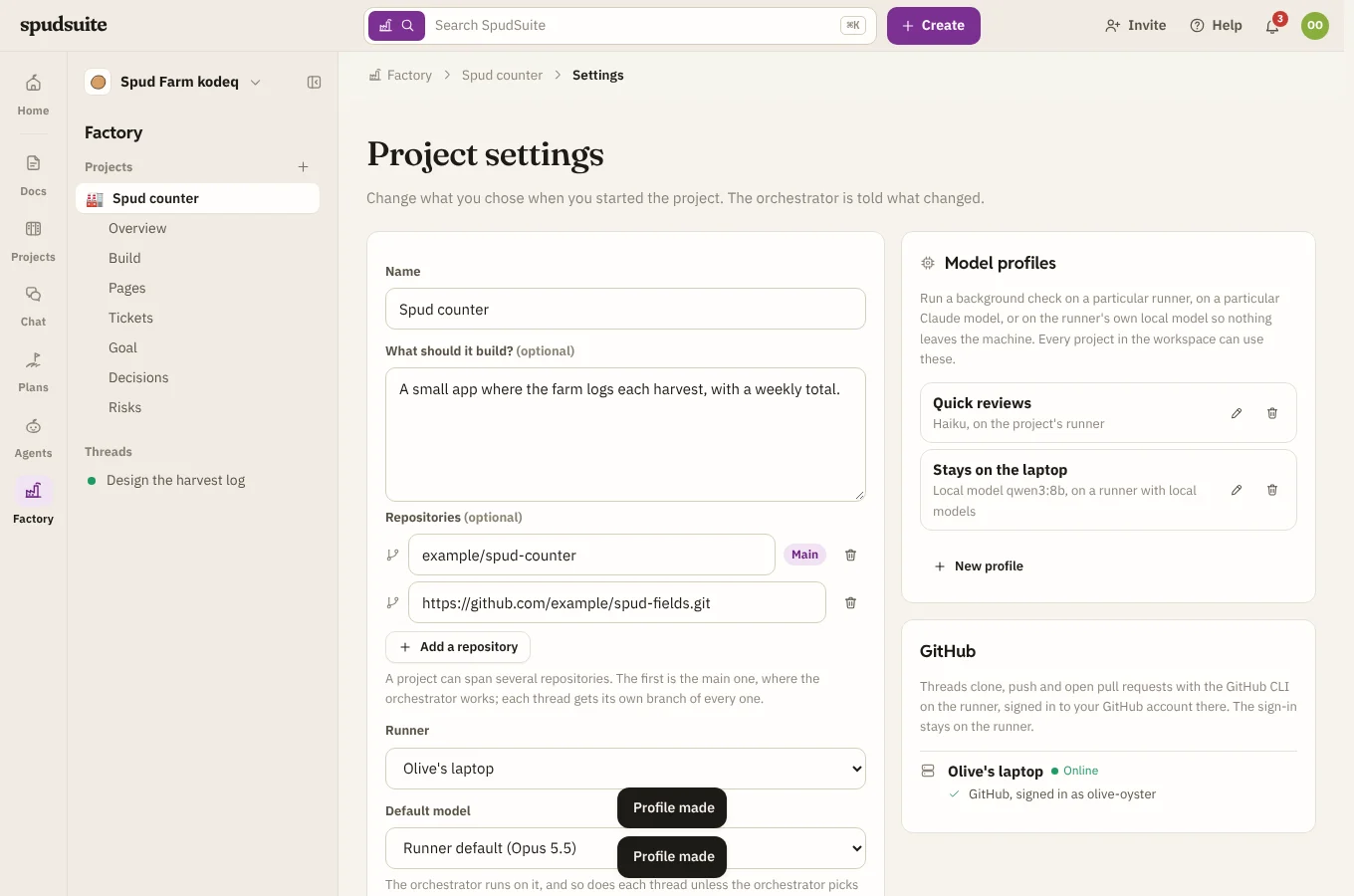
A model profile says where and on what a background check runs. Profiles are saved as you make them, and every project in the workspace can use them. Choose New profile under Model profiles, give it a Name, and choose:
- Model: the project's model, Opus, Sonnet or Haiku, or Local model only.
- Runner: the project's runner, or a particular one. A check on another runner works from its own copy of the project's repository there.
With Local model only, the check runs on the runner's own local model, so the code and the model's work stay on that machine. Only what the check reports, such as its findings, comes back to SpudSuite. It runs only on a runner with local models set up. You can name the Local model; otherwise the runner's default is used. It works the way threads on local models do. Small local models suit reviews better than coding.
Then choose the profile in a check's Runs with list. Deleting a profile moves the checks that used it back to the project's runner and model.
Spare-time work
Two more kinds of background run, each off until you tick it. They run only when the runner has spare AI budget (the same check as Only on spare AI budget above), one at a time, and count toward the Up to runs a day.
- Try ideas on branches adds Try on a branch to each of the Overview's next steps. Choose it and, when there's budget, the runner builds a first version in a worktree on a branch of its own (
factory/try-…), pushes it and opens a draft pull request. The next step then links to it, with a few words on what was done. If the try doesn't work out, it says why and you can Try again. - Review pull requests has the runner review each pull request a thread opens, once: it reads the change with the GitHub CLI and leaves its review in the thread that opened it, for you and for the thread's next turn. It doesn't comment on GitHub or change any code.
Both need SpudSuite Runner 0.1.23 or later. While they're waiting on budget, the Overview's Next steps says why.
Without a repository
You don't need GitHub to start. A project with no repository gets a git repository on the runner, and the work stays there:
- Each thread still works in parallel, in its own worktree on its own branch.
- Threads commit locally. Nothing is pushed and there are no pull requests.
- When a thread's work is ready, the orchestrator merges its branch into
mainon the runner.
Add a repository here later and threads start pushing and opening pull requests.
Several repositories
A project can span up to ten repositories, such as a web app, its API and a shared library.
- Type
owner/namefor a GitHub repository, or paste any address thatgit clonetakes (https://,ssh://orgit@). - Click Add a repository for another one, and the bin to remove one.
- The first one is the Main repository. The orchestrator works in it.
- Each thread gets its own branch,
factory/<thread>, of every repository, and Claude Code can read and change all of them.
The runner checks out any new repository before the next turn. Removing one doesn't delete its checkout from the runner.
Signing the runner in to GitHub
To clone private repositories, push branches and open pull requests, the runner uses the GitHub CLI (gh), signed in to your GitHub account on that machine.
- In the project's settings, under GitHub, click Sign in to GitHub next to the runner. If the GitHub CLI isn't on the runner's computer yet, the button says Install and sign in: the runner downloads the GitHub CLI from GitHub's own releases, checks it, installs it for your user account only, and then carries on.
- A code appears. Click Open GitHub, enter the code on github.com, and approve.
- The runner says GitHub, signed in as your username.
You can also sign in on the runner's computer with gh auth login. Either way the sign-in stays on the runner. SpudSuite only ever sees whether it's signed in and as whom. If a runner says to update this runner, it's on a version from before GitHub sign-in; update it from its page.
With a personal access token instead
If you'd rather not sign the GitHub CLI in, or the runner doesn't have it, save a GitHub personal access token on the runner. Threads then clone, push and open pull requests with it, and gh uses it too.
- On GitHub, create a fine-grained token for the repositories threads work on, with Contents and Pull requests set to Read and write.
- Save it on the runner, either way:
- In the runner app, under Git and GitHub, paste it into GitHub personal access token and click Save token.
- On the runner's page in SpudSuite, add a runner secret named
GITHUB_TOKEN. - For several runners at once, put it in a runner profile and tick them.
- The runner says GitHub, signed in as your username with a personal access token. If GitHub turns the token down, the runner says so; save a new one.
A saved token comes first: while it's there, the runner doesn't use the GitHub CLI's sign-in. It only goes to github.com, and your computer's own git sign-ins (such as the macOS Keychain) are never asked for it or given it to keep.
Who commits are by
Threads commit as SpudSuite Factory to start with, and Claude Code adds Claude as a co-author, so GitHub shows both. To change that, open the project's settings and choose under Commits are by:
- The runner's setting: SpudSuite Factory, or the name set on the runner (see below).
- Claude: commits are Claude's, and GitHub shows Claude as the only contributor.
- A name and email you choose: fill in Commit name and Commit email. Use the email on your GitHub account and the commits show as yours, with Claude as co-author.
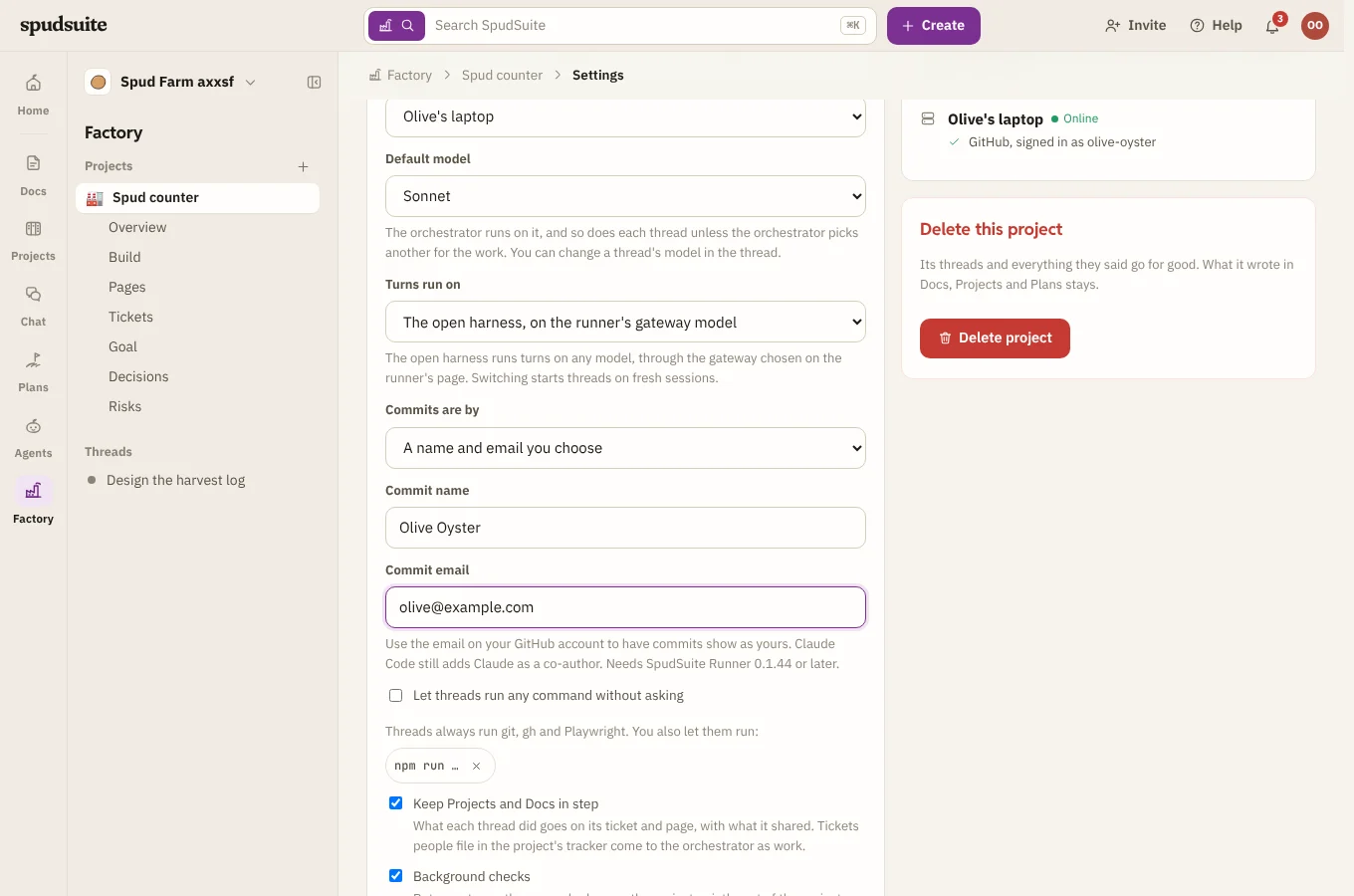
Click Save. Threads use it from their next turn, on SpudSuite Runner 0.1.44 or later. It changes who commits are by, not who opens pull requests: that's whoever the runner signed in to GitHub as.
The runner's own git settings
By default, threads use the runner's own git settings, not yours. They never see your ~/.gitconfig, your saved git sign-ins or the macOS Keychain, and their commits don't carry your name. On a computer you also use yourself, that keeps threads' work and yours apart.
- Commits are named SpudSuite Factory unless the project says otherwise (see Who commits are by), or you set a Commit name and Commit email in the runner app under Git and GitHub, or with
spud factory git --name "Potato Bot" --email bot@example.com. - To use your computer's own git settings instead (your name, your includes, your sign-ins), choose This computer's in the runner app, or run
spud factory git --profile machine.
Claude Code works the same way. By default threads use this computer's Claude Code settings and sign-in. Choose Claude Code: the runner's own in the runner app (or spud factory git --claude runner) to give the runner its own Claude Code settings in its own folder; then sign it in once with Sign in with Claude or spud factory signin.