Admin
People and roles
Owners and admins look after who's in a workspace and what they can do, from Settings › People. Open it from the workspace menu at the top of the sidebar (Workspace settings) or the command palette. It has four tabs: Everyone, Invitations, Roles and Audit log.
Roles
A role is a set of permissions and a seat. Every workspace starts with these recommended roles:
| Role | Seat | Can |
|---|---|---|
| Owner | Member | Everything, plus delete the workspace and hand it to someone else. There's one owner. |
| Admin | Member | Everything except deleting and handing over: people, roles, billing, settings, runners and every space, private ones included |
| Member | Member | Use and make things in every product, and invite people |
| Viewer | Member | Read everything open to the team, comment and chat, but not edit |
| Billing manager | Member | Everything a member can, plus the plan and billing |
| Guest | Guest | Only see the spaces, projects and plans they're added to, and chat there |
The seat says how someone counts against your plan's members and guests. People with a guest seat only ever reach what they're added to.
Change or make a role
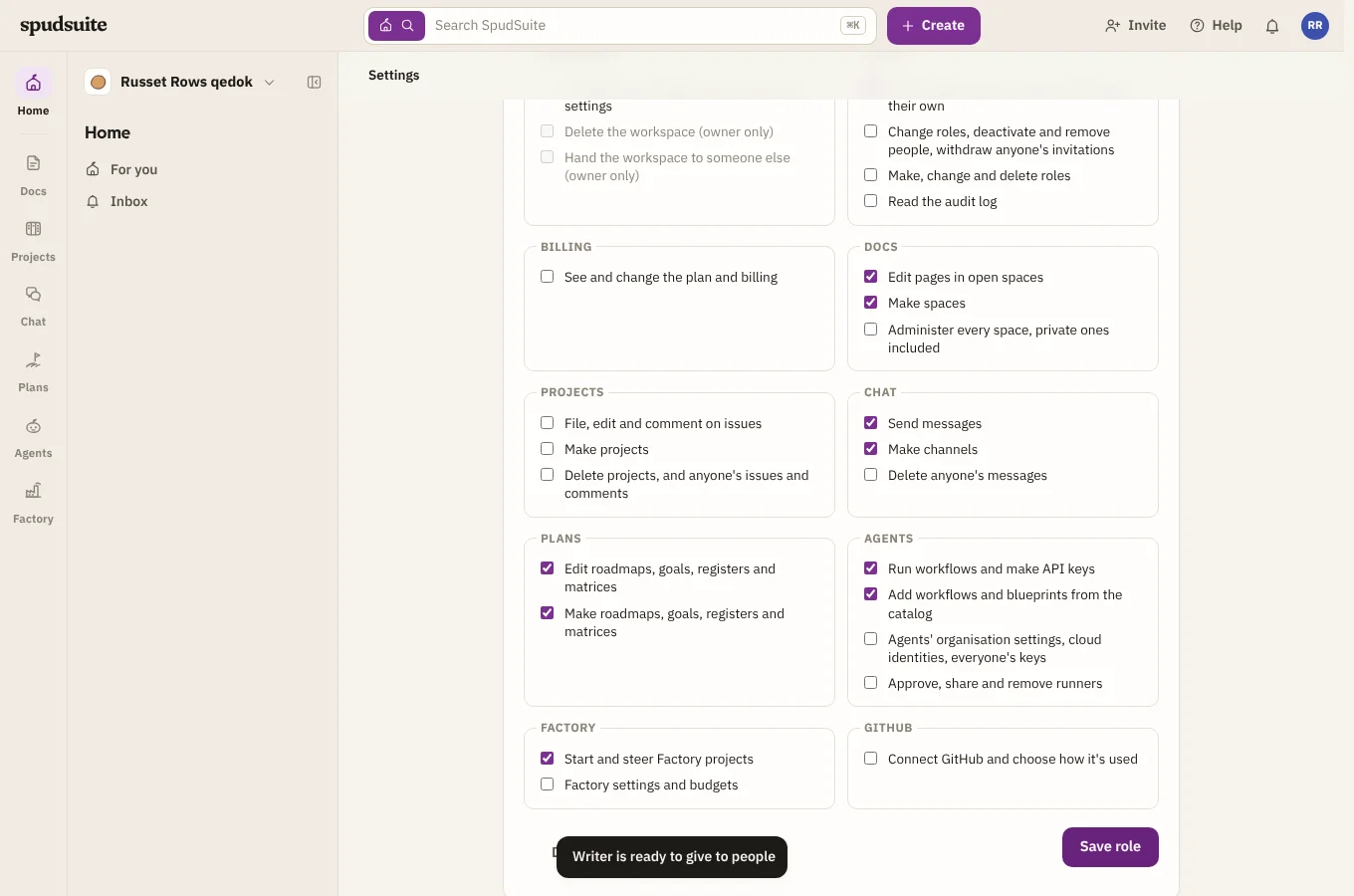
Open Roles and choose a role to see its permissions, grouped by product. Owners and admins can:
- Change a recommended role: tick or untick permissions and choose Save role. Everyone with that role gets the change straight away. Reset to recommended puts it back.
- Make a role: choose New role, name it, pick its seat, tick what it can do and choose Make role. It starts with Member's permissions.
- Delete a role you made, once nobody has it.
You can't give a role a permission your own role doesn't have, and the Owner role never changes.
Change someone's role
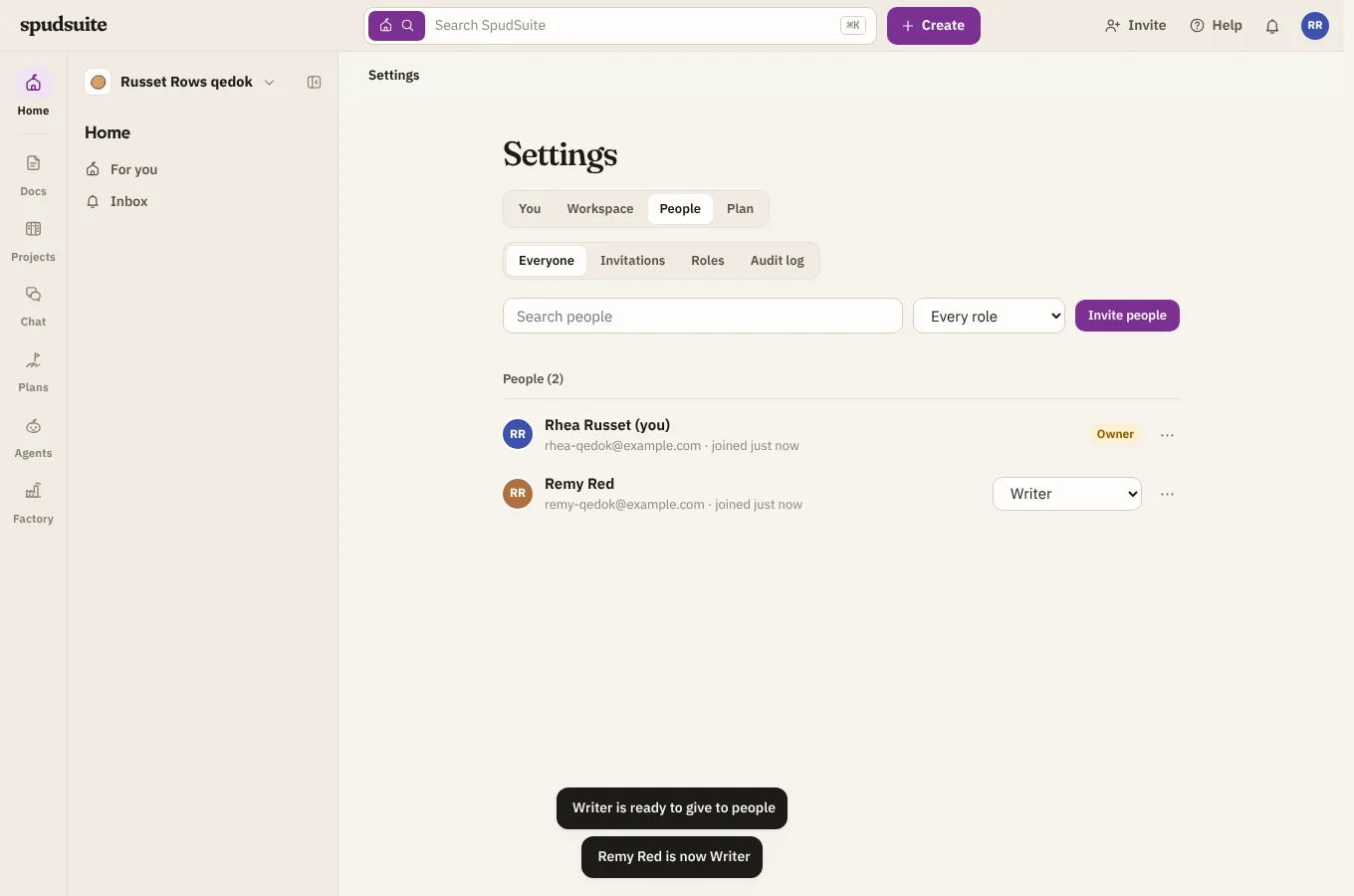
On People, pick a role from the menu next to their name. You can give any role except Owner, as long as your own role can do everything that role can.
Invite people
Choose Invite people. Type email addresses for invitations that last two weeks, or Get an invite link for a link several people can use. Pick the role they'll join with.
Invitations lists the invitations that can still be used, who sent them, and when they expire. Copy link to send one again, or Withdraw to cancel it. Everyone can withdraw the invitations they sent; owners and admins can withdraw any.
Guests
Guests are for people outside the team, such as a client or a contractor. A guest only sees what you add them to:
- A space: open the space and add them to its people.
- A project: open Project settings, then Guests, choose the guest and Add.
- A plan: open the roadmap, goal, register or matrix, choose Guests, then add them.
Until you add them to something, their Home says nothing has been shared with them yet. Guests see who's in the workspace but not their email addresses.
Deactivate someone
Choose ⋯ next to their name, then Deactivate. They can't open the workspace, they stop taking a seat, and their API keys stop working, but their pages, issues and messages stay with their name on them. They're listed under Deactivated; choose Reactivate to bring them back with the same role, if there's a seat free.
Remove someone
Choose ⋯, then Remove from workspace. They lose access to everything straight away. Their work stays.
Hand the workspace over
A workspace has one owner. To make someone else the owner, the owner chooses ⋯ next to their name, then Transfer ownership, and types the workspace's name. You stay on as an admin. Guests can't be owners.
Leave a workspace
Choose ⋯ next to your own name, then Leave workspace. You'll need a new invitation to come back. The owner hands the workspace over before leaving.
The audit log
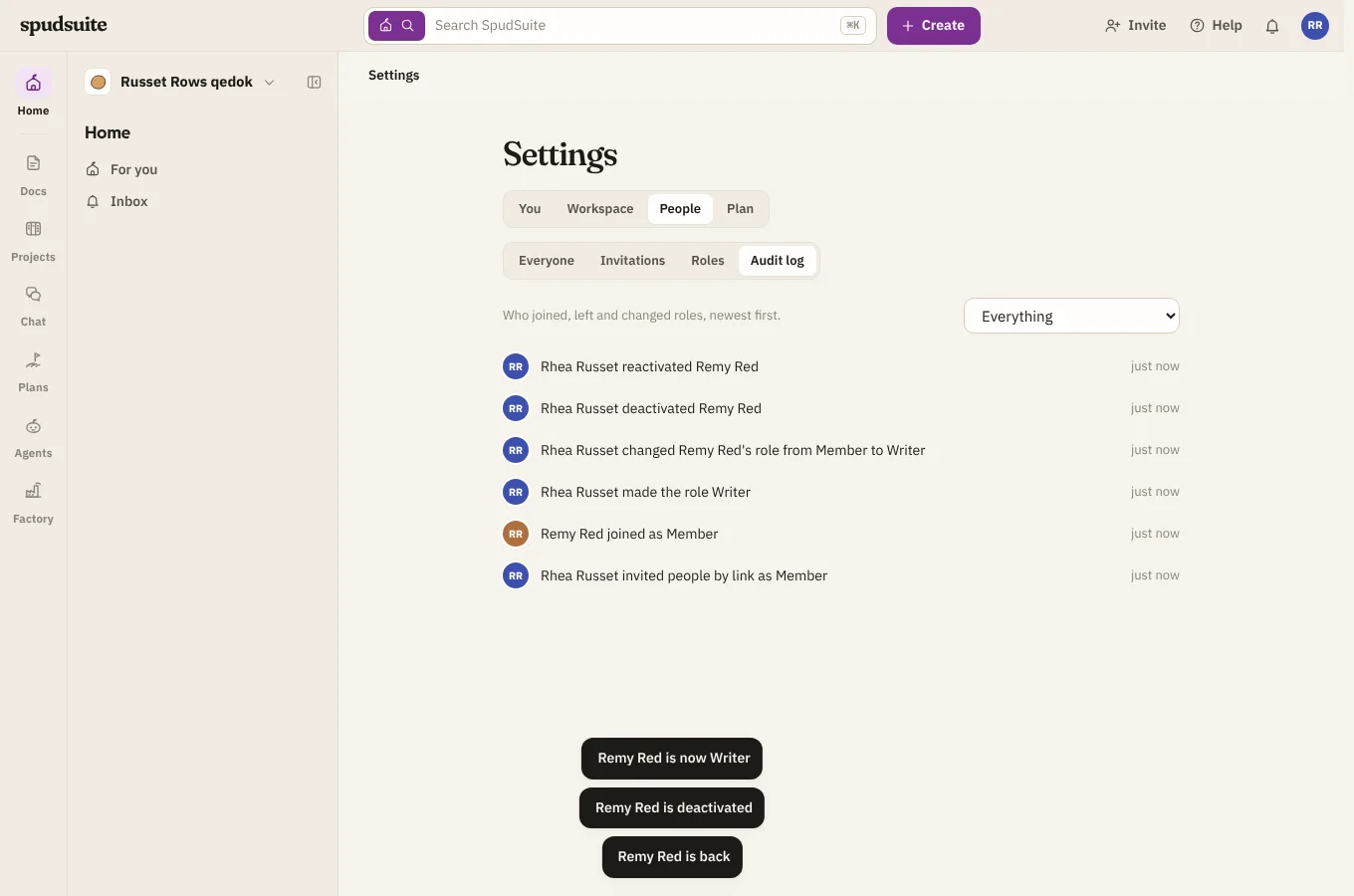
Audit log lists who joined, left, was invited, removed, deactivated or reactivated, every role change, every change to a role's permissions, handovers, and guests added to projects and plans, newest first. Filter it by kind of change. Owners and admins can read it, and so can anyone whose role includes Read the audit log.
Admins always get through
So nothing gets locked away, owners and admins (and any role that includes administering every space) can always open every space and every restricted page.