Factory
Factory
Factory builds software from a goal. You tell an orchestrator what you want, and it splits the work into threads, each one a Claude Code session working on its own branch. Threads keep a checklist, ask you when they need a decision, and write their progress into Docs, Projects and Plans so the whole team can follow along.
Everything runs on runners you install, with Claude Code signed in on that machine. Nothing runs on SpudSuite's side.
Start a project
- Open Factory on the rail and choose Start a project (or + next to Projects in the sidebar).
- Give it a name, and say what it should build, such as "A small web app where my team logs the potatoes we grow, with a weekly summary by email". You can leave it blank and tell the orchestrator in the project chat instead.
- Optionally give one or more repositories to work in. Without one, it starts a fresh one. You can change this, and everything else, later in the project settings.
- Pick the runner it runs on, or let any runner in the workspace take it.
- Choose Start.
You need a runner with Claude Code set up first: see Runners and Claude.
A Free workspace has one Factory project at a time (delete one to start another) and two threads working at once. Pro has any number of projects, and more threads at once by band. See Plans and billing.
What a project makes
Starting a project also sets up a home for it across SpudSuite:
| Where | What |
|---|---|
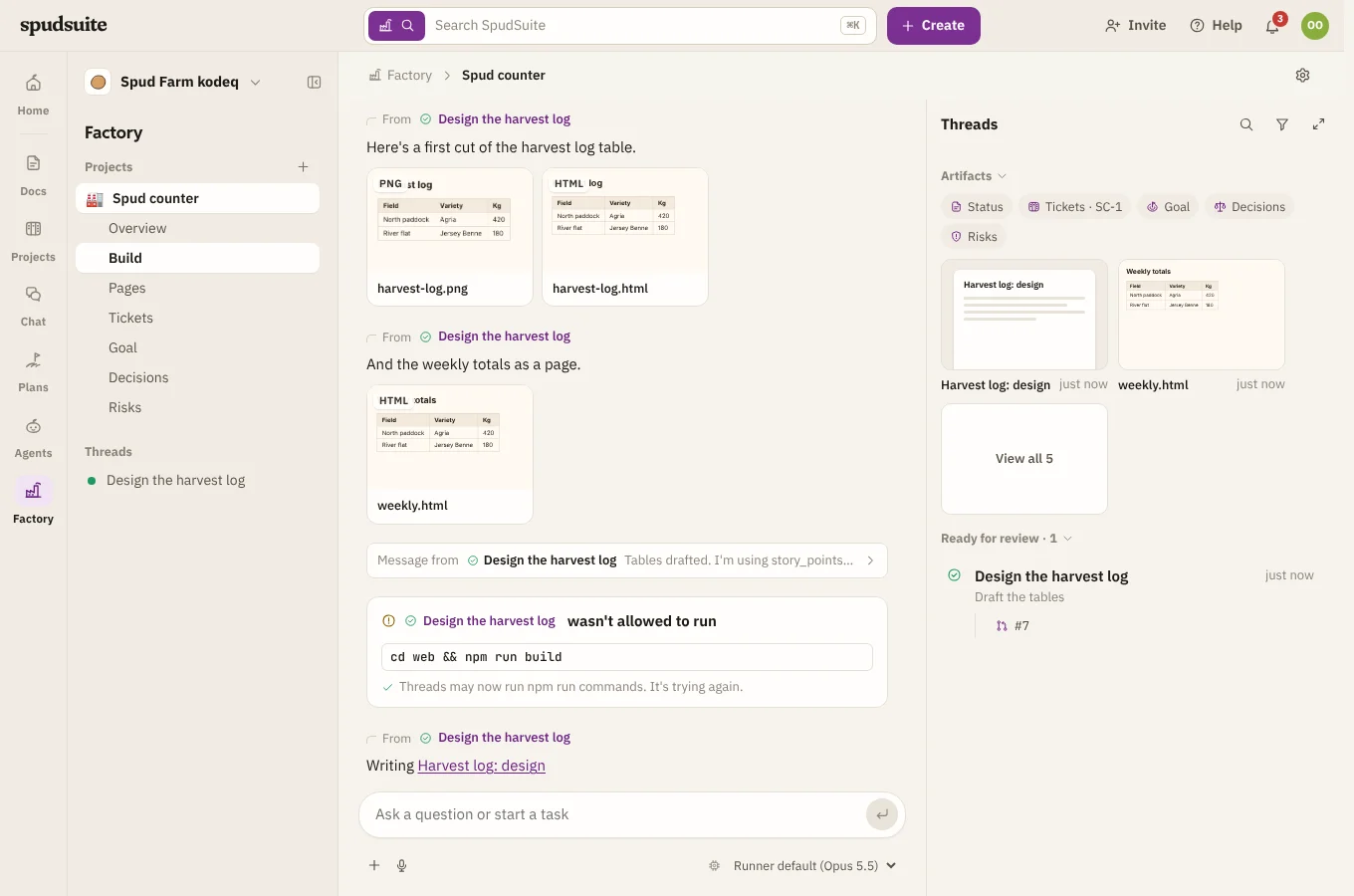
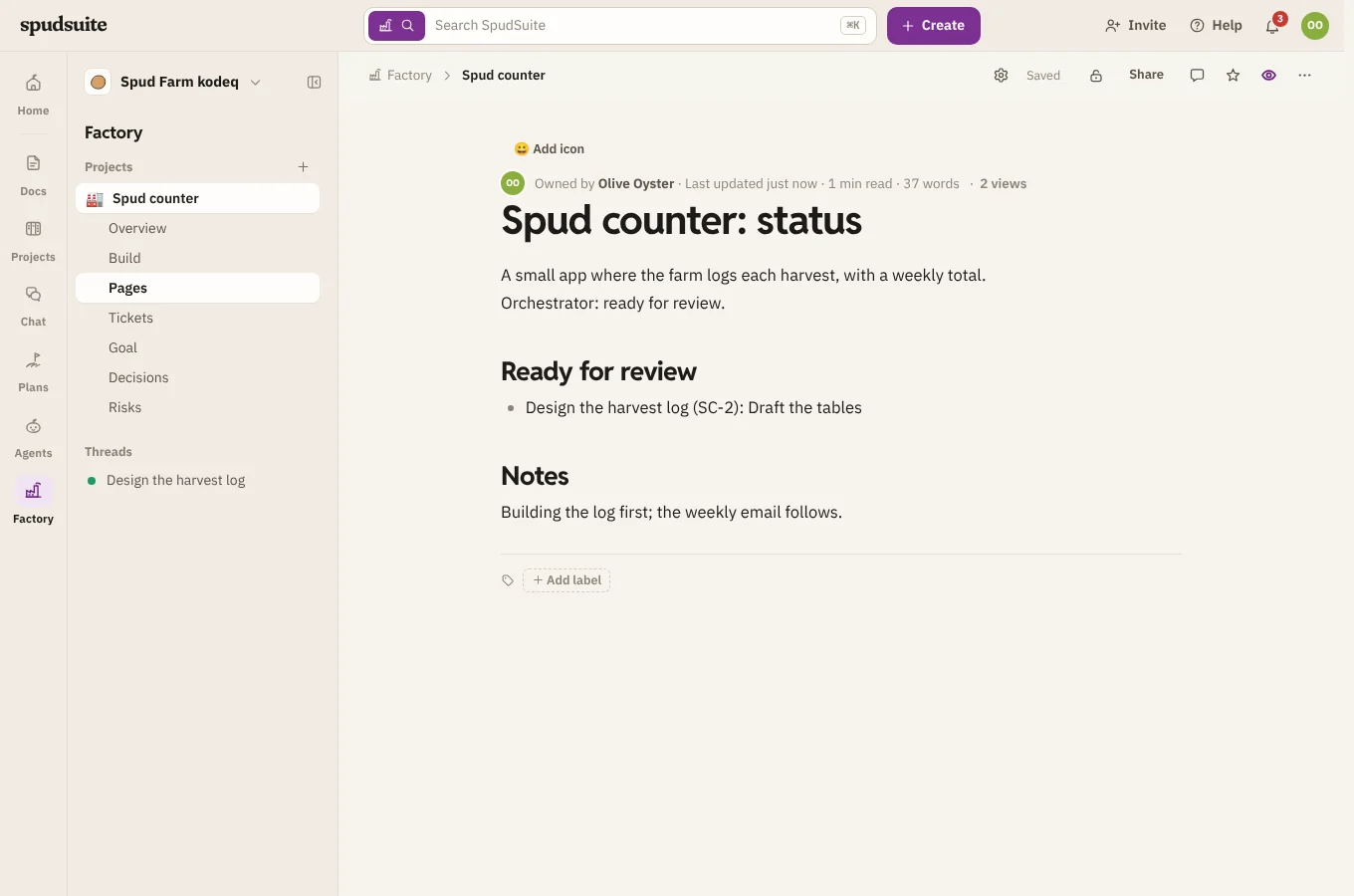
| Docs | A space with a status page that Factory keeps up to date, and a page for each thread |
| Projects | A project with an epic, and a ticket for each thread. A ticket's status follows its thread: working is In progress, waiting or ready for review is In review, done is Done. |
| Plans | A goal whose progress follows the tickets, a decision log of every question asked and answered, and a risk register threads add to |
Each one is a screen of the project in Factory, so you move between them without leaving it: Pages (the status page and each thread's page), Tickets, Goal, Decisions and Risks. They're the same screens as in Docs, Projects and Plans, so what you change there shows everywhere.
The open project's screens are listed under its name in the sidebar, with Overview and Build first. Below them, Threads lists the project's threads, the ones waiting on you first, then the busy ones (their dot pulses). Click one to open it beside the chat. When you hide the sidebar, the screens show as tabs along the top instead. On a phone, they're in the menu at the top left.
Overview
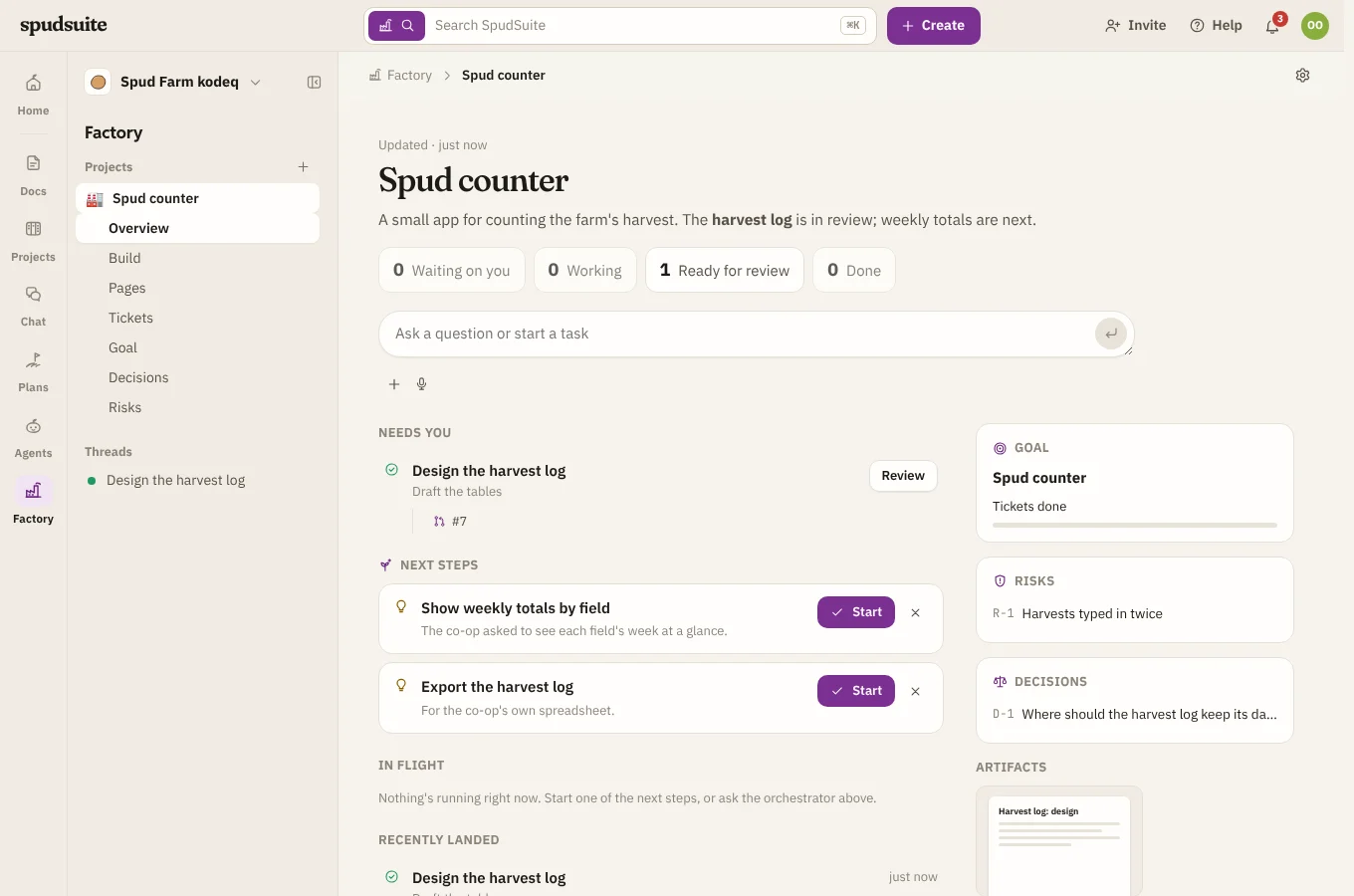
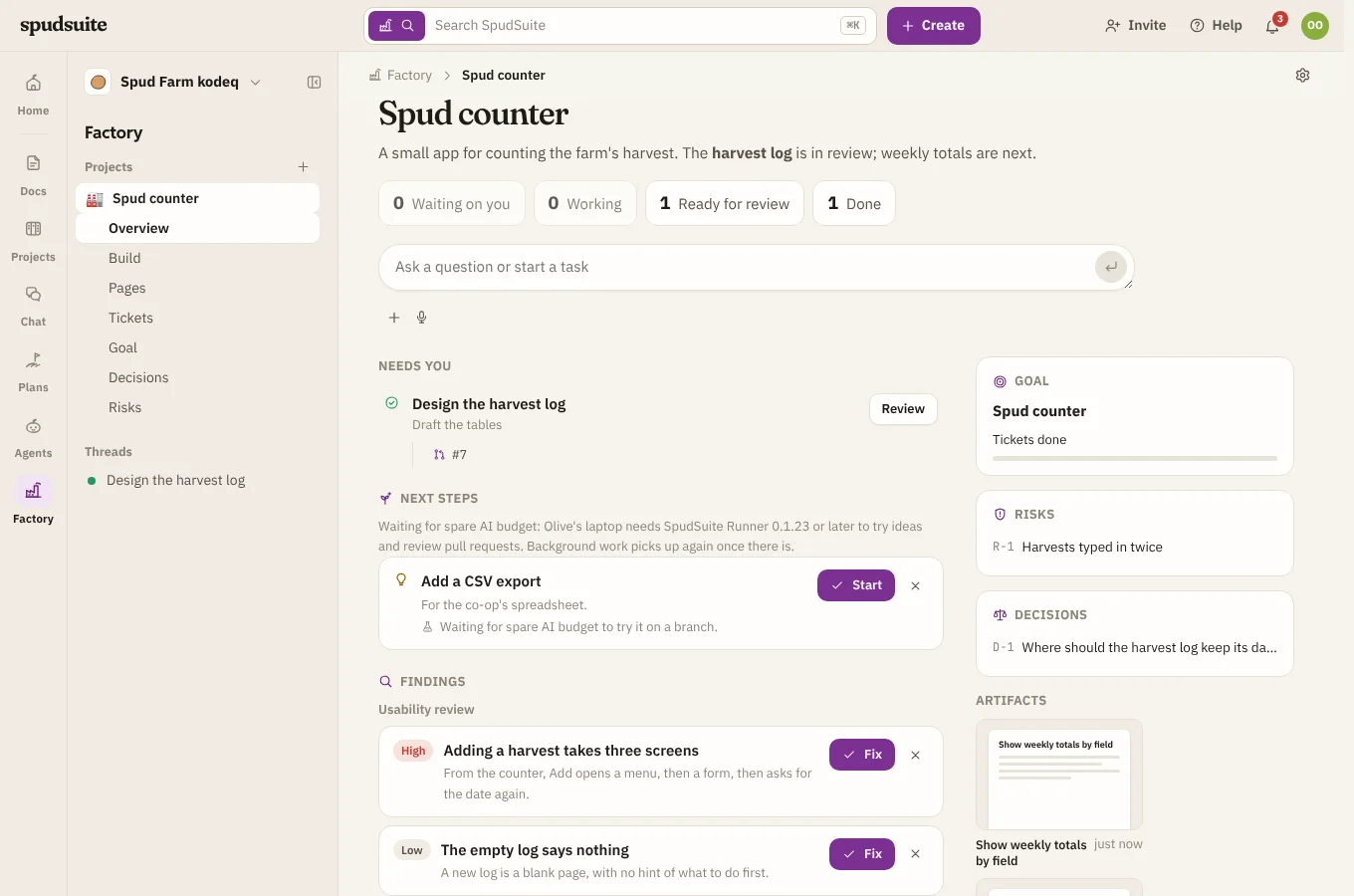
Opening a project takes you to its Overview: what the project is about and where it's at, in the orchestrator's words, and how many threads are waiting on you, working, ready for review and done.
- Needs you lists the threads with a question for you, or with work to review. Click one to open it.
- Next steps are what the orchestrator suggests doing next, with why. Choose Start and it starts as a thread straight away, and the orchestrator hears you picked it. Choose × to let one go. The orchestrator refreshes them as the work moves. With background checks on, they're filled in again whenever there are none. With Try ideas on branches on, Try on a branch has the runner build a first version on a branch of its own when there's spare AI budget, and the next step then links to the draft pull request it opened. You can still Start it, and the thread hears about the branch.
- In flight and Recently landed show what threads are doing and what they finished, with their pull requests.
- On the side are the project's goal with its key results, its biggest open risks, its latest decisions, the runners its threads run on with what each is doing for the project, and what it has made.
Ask the orchestrator anything from the box at the top, and you go to the chat to see its answer.
Findings
When you've turned on checks under Looking at the software in background checks, what they find shows under Findings. Findings are grouped by check, with the most serious first, and each is marked High, Medium or Low. Choose Fix to start a thread on it straight away, with what the check saw and a brief for the fix. The orchestrator hears that you started it. Choose × if it isn't worth doing.
Feature health
Under Feature health are the project's features with their rating, from A to E, and a bar for each side they were scored on. Click one for its breakdown and recommendations, or choose Assess a feature to ask for another. See Feature health.
The project chat
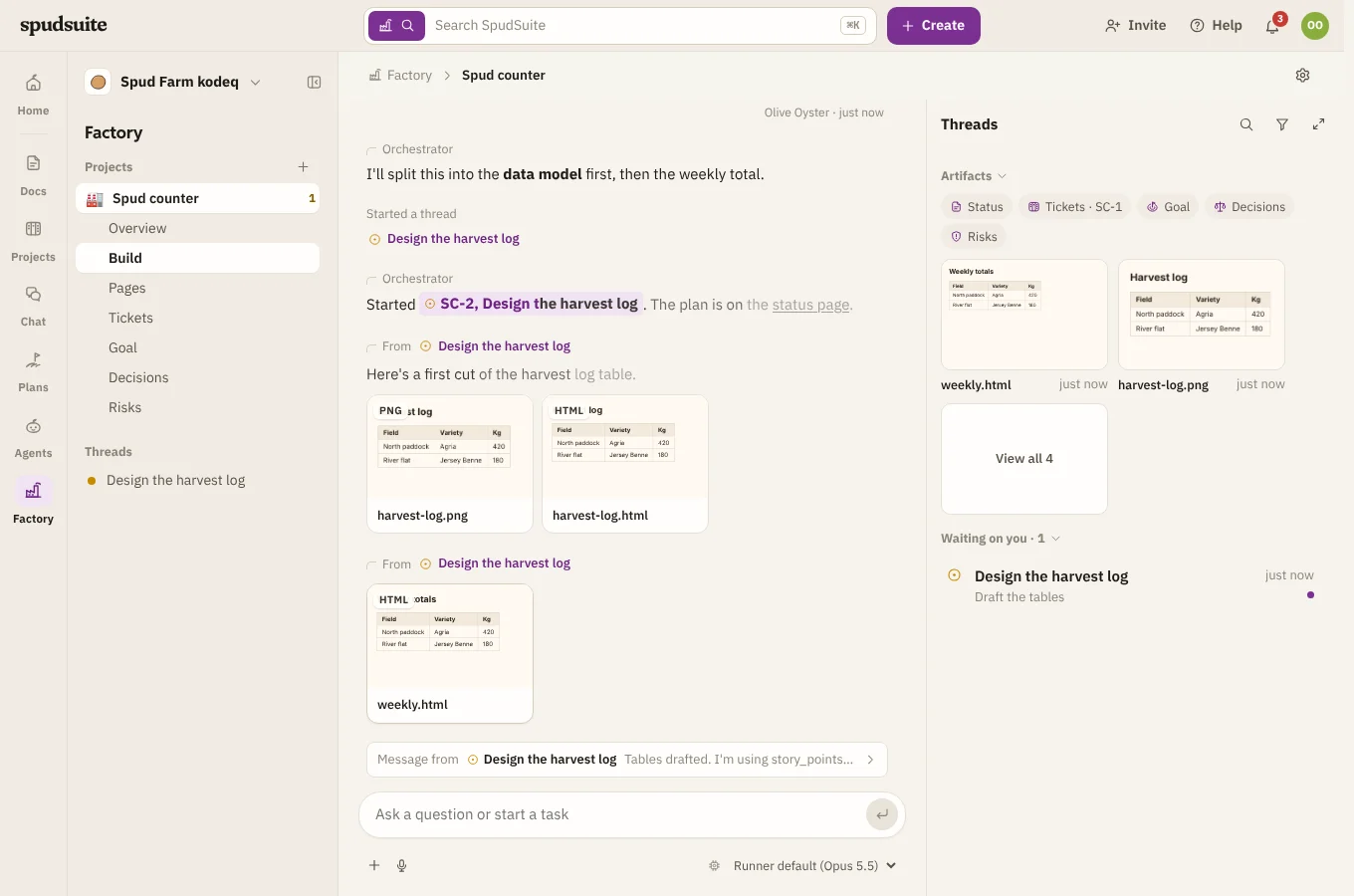
Choose Build for the chat with the orchestrator. Tell it what you want, answer its questions, and ask how things are going. It starts threads as it splits up the work, and they show up in the threads panel on the right. See Threads.
Welcome back
Ask the orchestrator for a few things and go do something else. When you come back to the project after half an hour or more, and something finished or needs you while you were gone, the orchestrator says hello for the time of day where you are (Morning!, Evening!, or Up late?) and catches you up in one post:
- Done: each thread that finished, in its own words, with its pull requests.
- Still working: what each busy thread is on now.
- Needs you: questions waiting for your answer, and threads that stopped with an error.
Click a thread's name to open it beside the chat. The welcome back is only for people who've asked the orchestrator for something in that project, and it comes once each time you return. If nothing happened while you were away, it stays quiet.
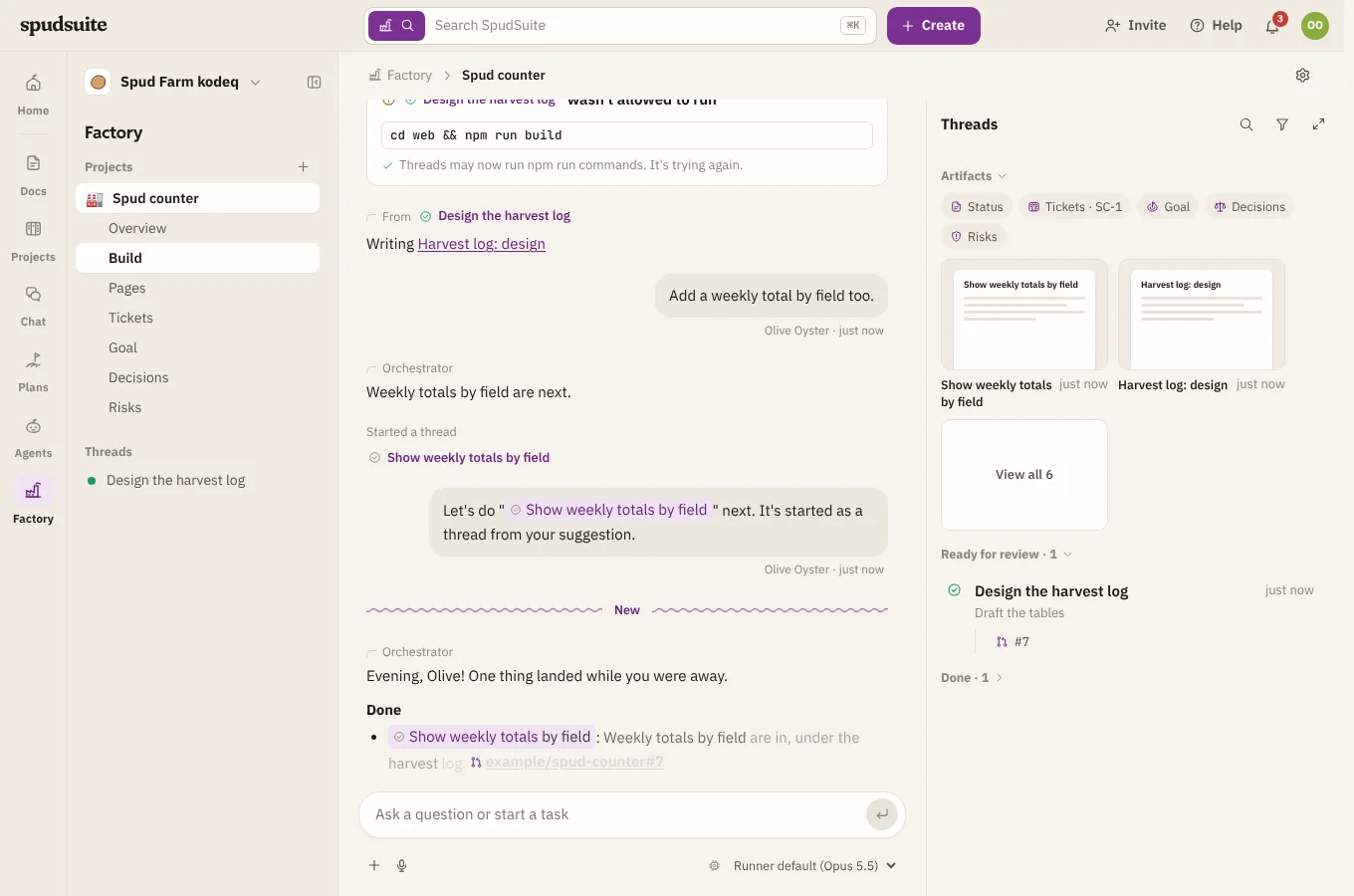
Drag the threads panel's left edge to make it wider or narrower (as wide as you like, leaving the chat a narrow strip), and double-click the edge to put it back. SpudSuite remembers the width on this browser. On smaller screens the panel opens over the chat instead, at a fixed size.
Who can do what
Workspace members can start projects and steer them. Guests can follow along but not steer.